Ticstube
Key Features:
- Video Uploads & Channel Management
- Monetization Opportunities
- Premium User Accounts
- Ad Posting
- Subscription Model
- Payment Integrations
- Search & Discovery
- Admin Management
- Responsive Design
- Social Login
With these features, TiscTube offers a robust and scalable solution for anyone looking to build a video-centric platform. Whether you’re building a community-driven video site or a monetization-focused platform, this script provides all the necessary tools to get started.
Server Requirements
- PHP Version: 8.2 or higher
- Laravel Version: 10.0 or higher
- MySQL Version: 8.0 or higher
- Redis Version: 6.0 or higher
- MongoDB Version: 4.4 or higher
- PHP Extensions:
- pdo_sqlite
- pdo_mysql
- openssl
- xml
- fileinfo
- curl
File Permissions
Warning:
Please make sure you have set the writable permission on the following folders/files:
- /public/uploads
- /storage/framework/cache
- /storage/framework/sessions
- /storage/framework/views
- /storage/logs
- /bootstrap/cache
- /.env
Script Installation
- Download the script files from CodeCanyon and extract the zip file.
- Upload Script zip files to your web domain root directory using an FTP client (e.g., FileZilla) or via your hosting control panel (cPanel, Plesk, etc.). Make sure to upload the zip files inside the public_html directory or wherever your root directory is located. Then unzip the files.
- Create a new MySQL database and a database user from your hosting control panel (such as cPanel or Plesk). Also Assign the new user to the database and note down the database name, username, and password for the next step.
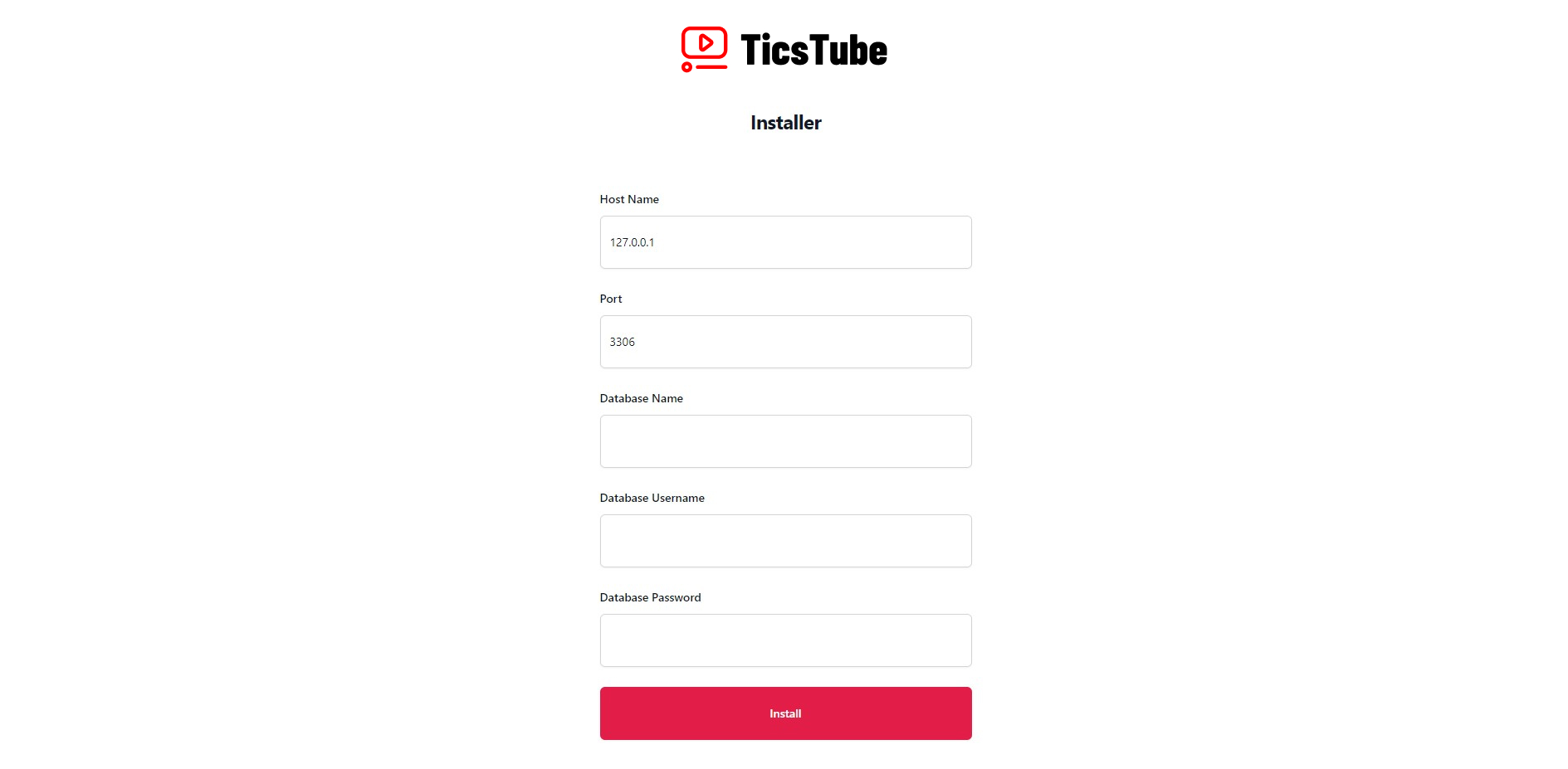
- After that go to the domain or subdomain where you want to install the script. For example: www.yourdomain.com. You will find a script installation form there. Fill in the details and submit.
Note:
During installation on the server, a 500 error may occasionally occur. This is expected and can be safely ignored, as it sometimes happens when seeding data or restarting the server. Please wait for a moment, and once the installation is complete, the system will function correctly.
Super Admin
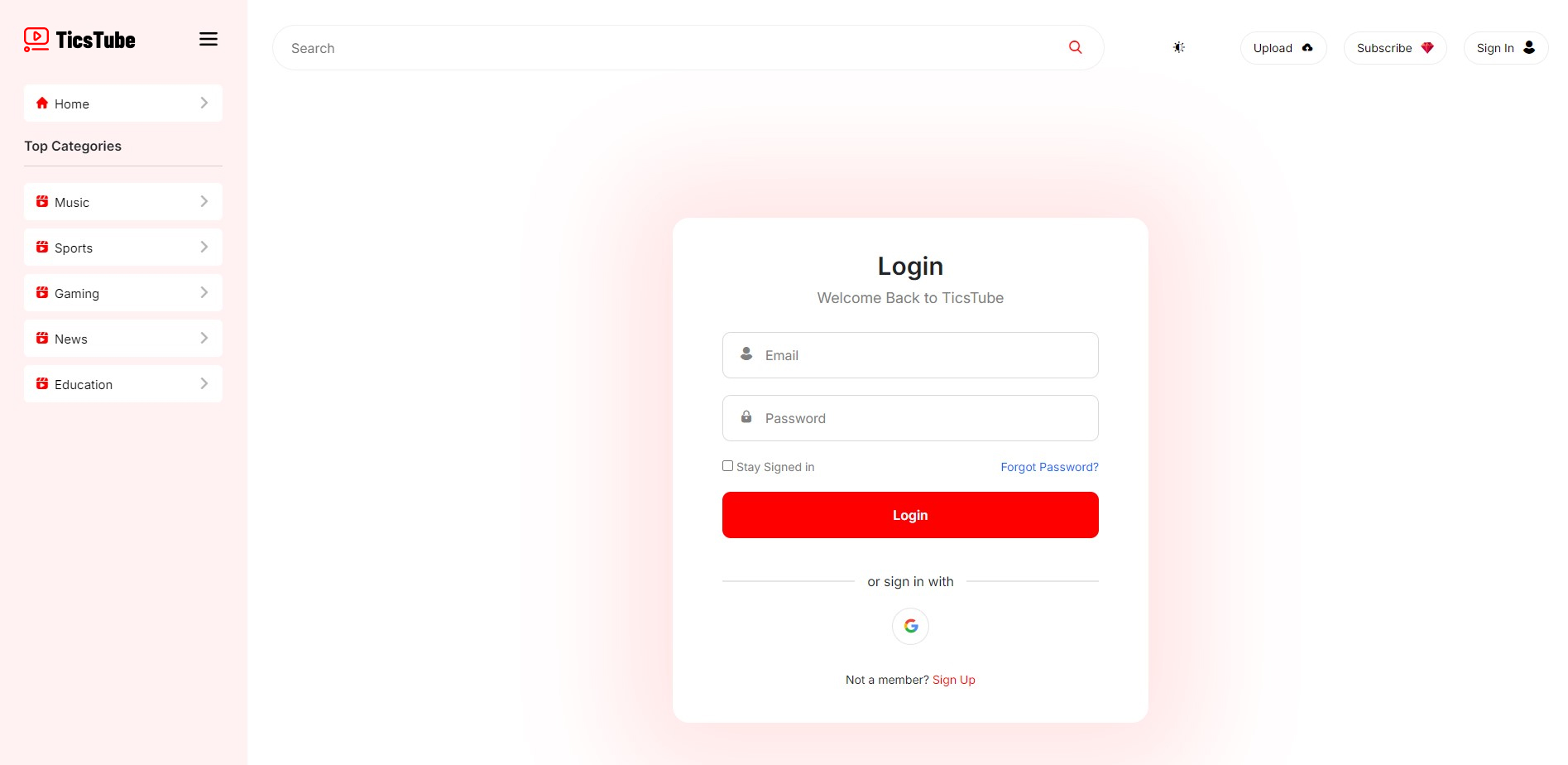
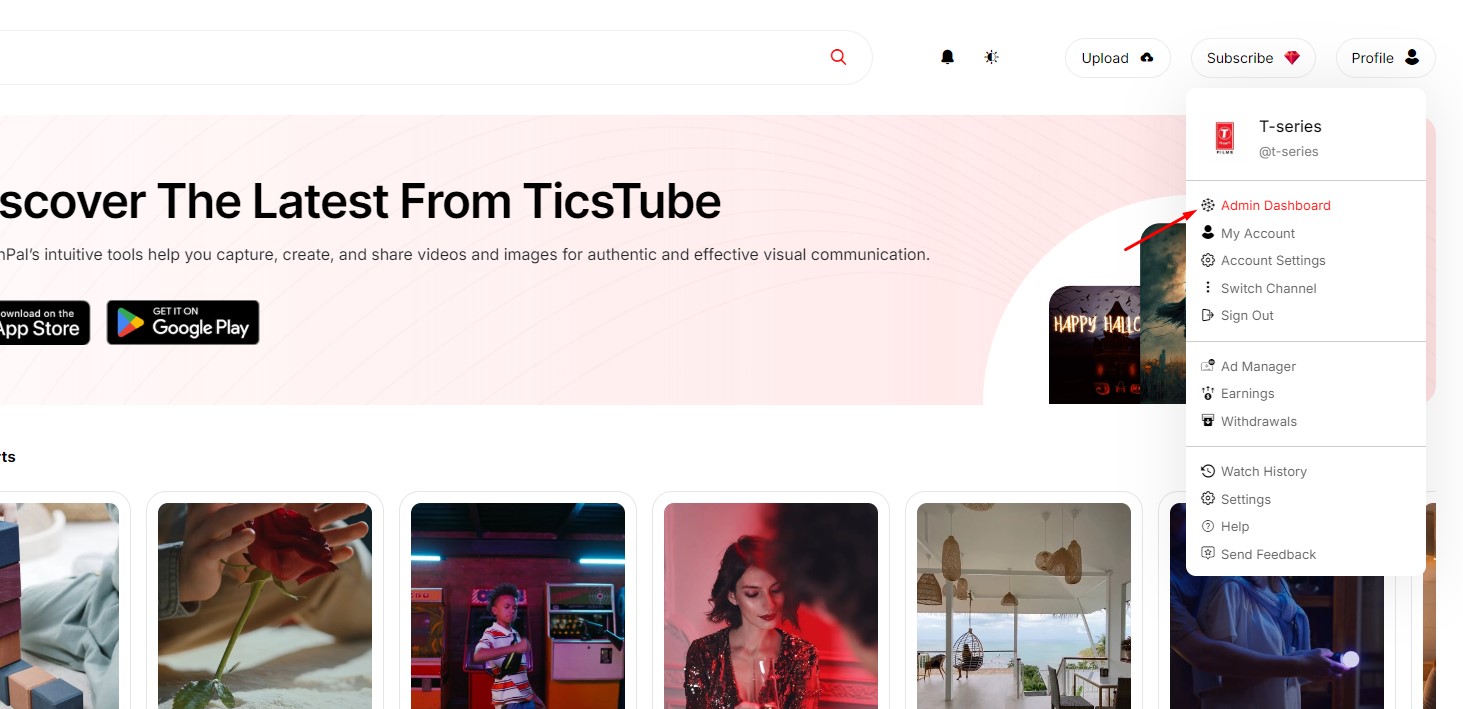
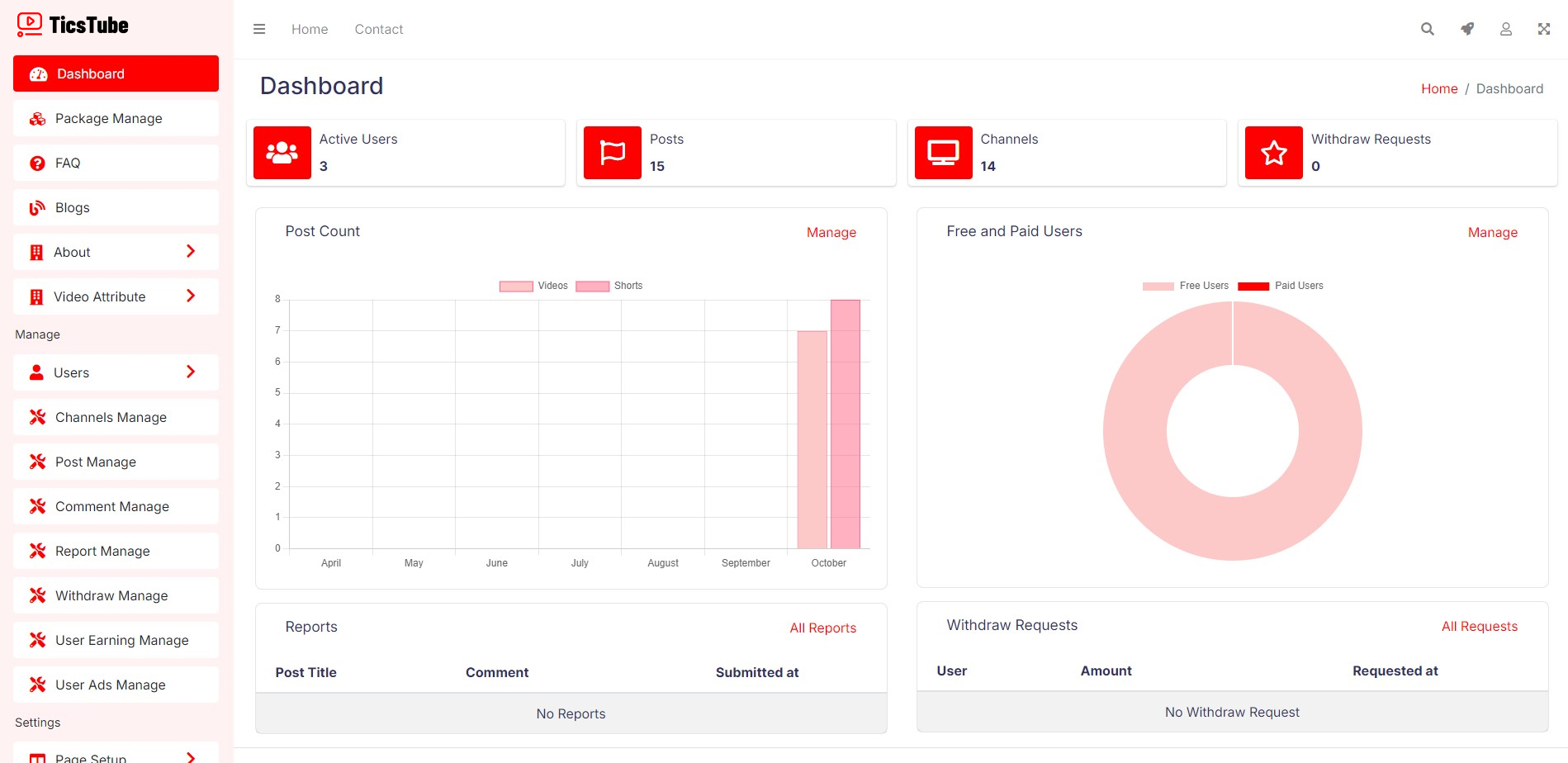
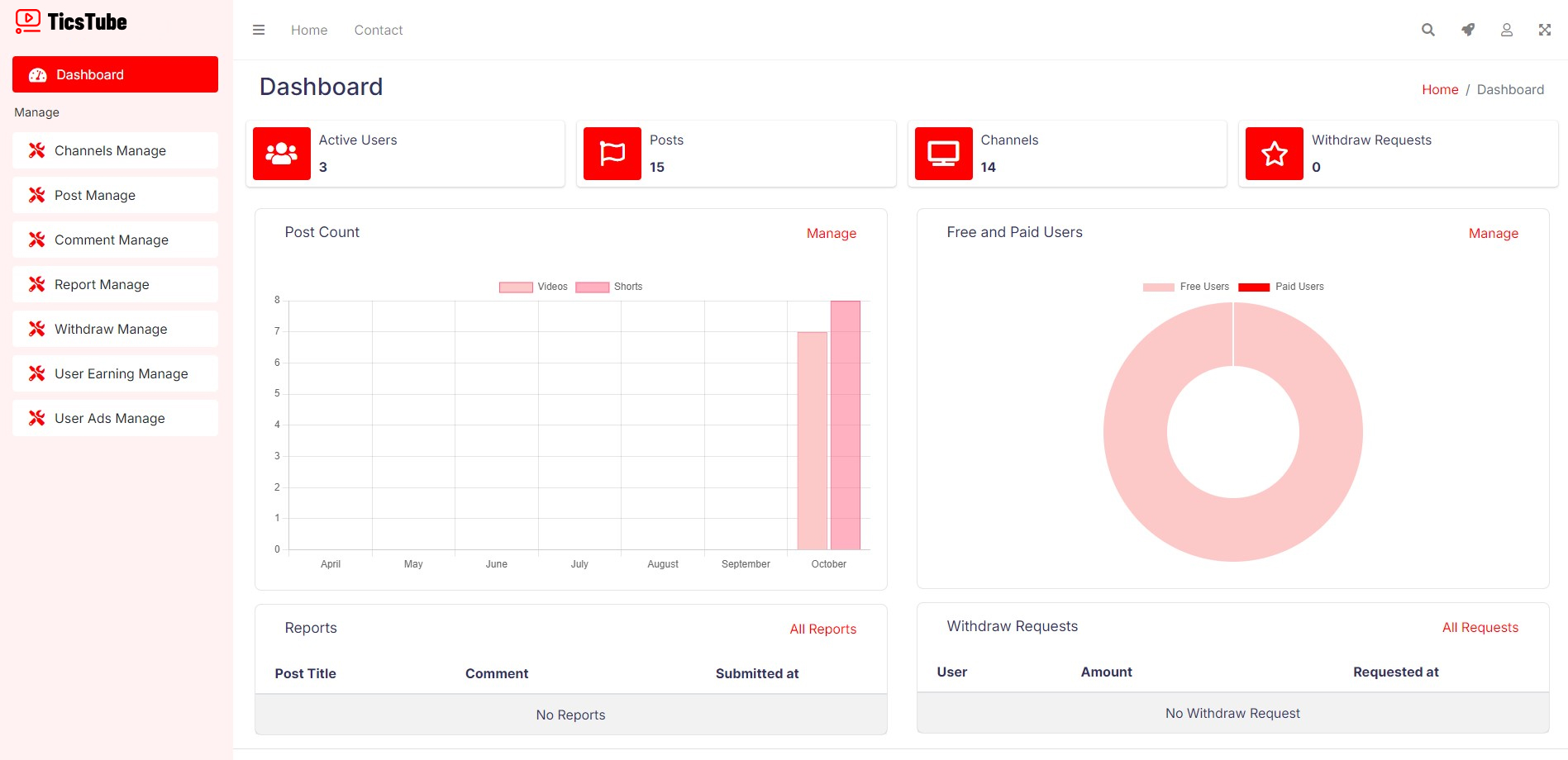
The Super Admin role has the highest level of access on the platform. After logging in, the Super Admin can manage every aspect of the system, including user management, video moderation, financial settings, and defining how much users can earn from premium videos. Super Admins also have full control over content approval, analytics, and managing site-wide settings, including payment gateways like Stripe and PayPal.
Login Credentials:
Email: superadmin@demo.com
Password: 12345678
Admin
Admins have slightly restricted access compared to the Super Admin but can still perform key administrative tasks. They can manage users, approve or reject videos, monitor content reports, and ensure that the system is running smoothly. Admins can also oversee ad postings and premium video approvals.
Login Credentials:
Email: admin@demo.com
Password: 12345678
User
Regular users can sign up and log in to create their channels, upload videos, and post ads. Users can also upgrade to premium accounts, which provide additional features like the verification badge and video download capabilities. Premium users can earn by uploading exclusive content, which can be accessed by other users for a fee.
Login Credentials:
Email: user@demo.com
Password: 12345678
Site Settings
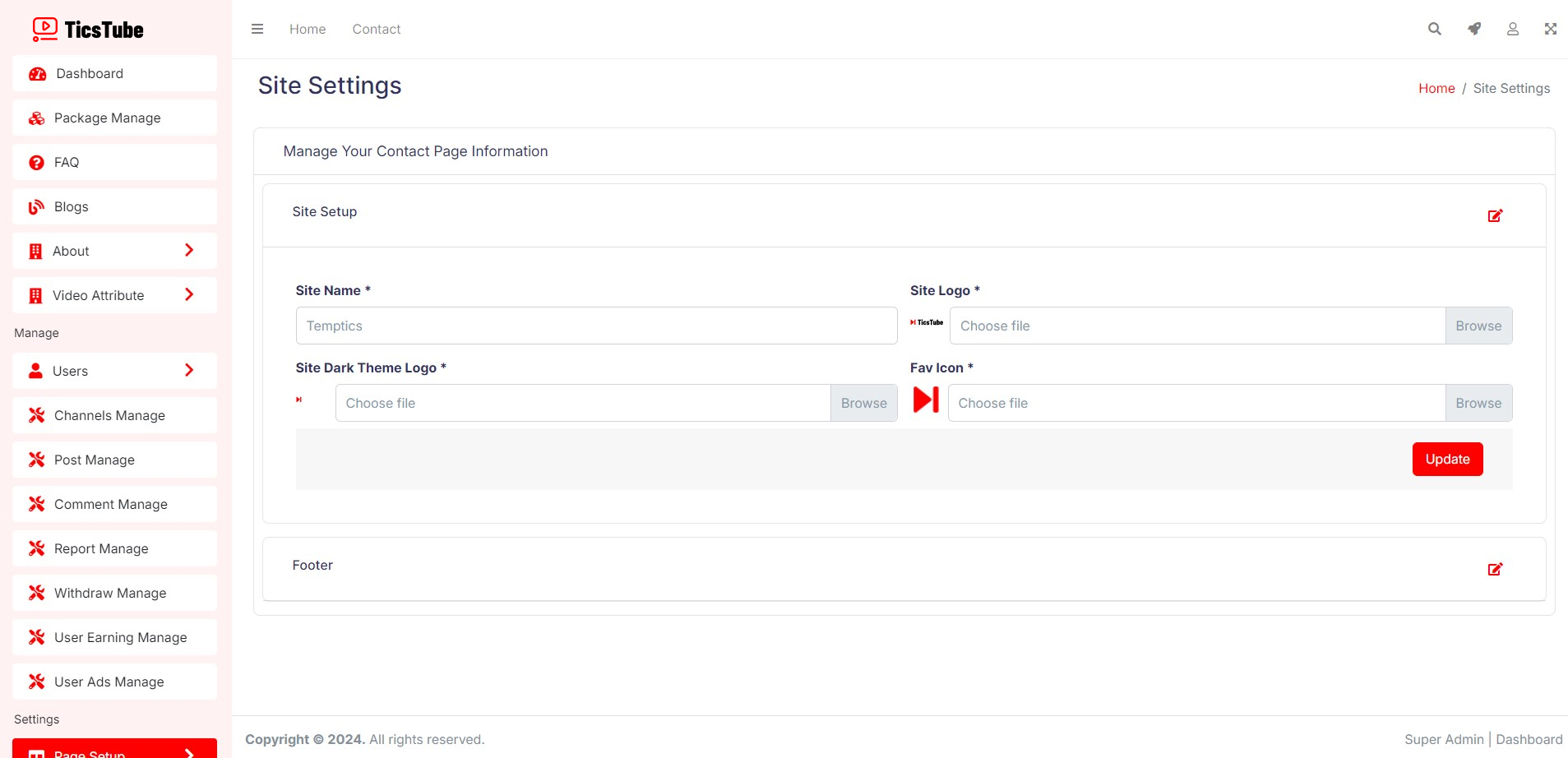
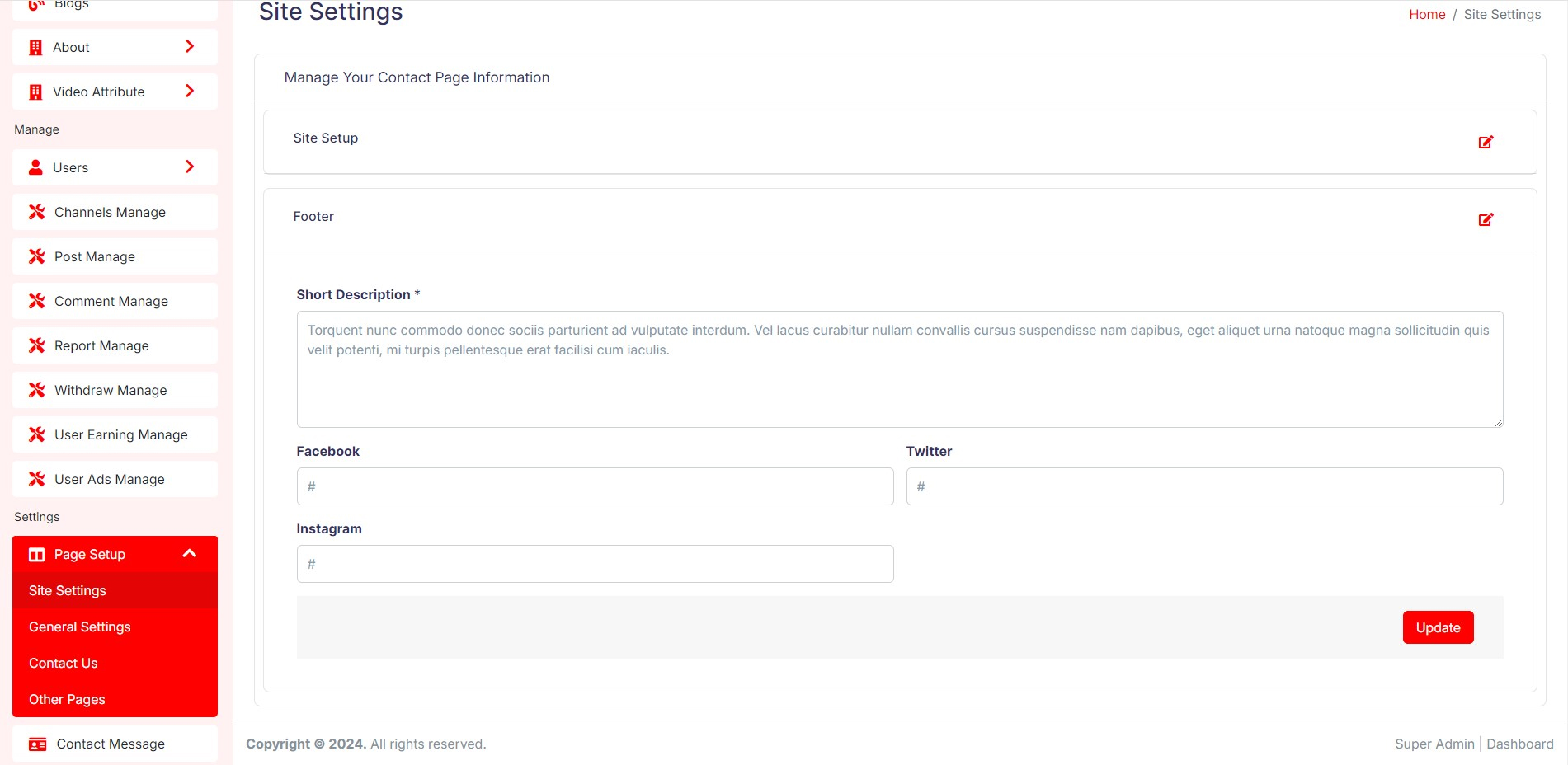
You can update Site name, Logo, Fav Icon and Social Media Link and Footer description from here.
Follow Steps:
Superadmin Dashboard: Page Setup > Site Settings
General Settings
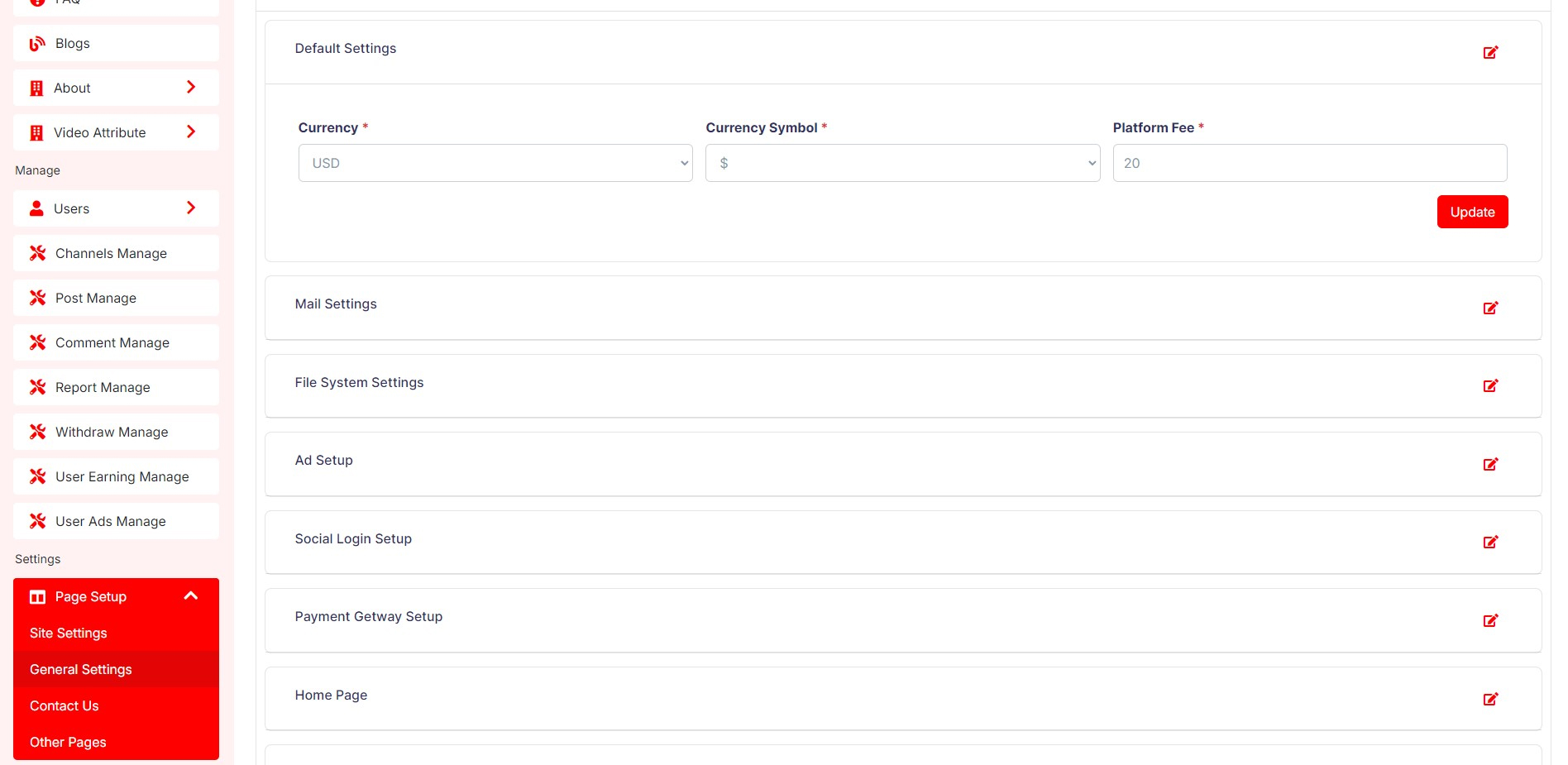
You can manage all your site settings using the format below.
Follow Steps:
Superadmin Dashboard: Page Setup > General Settings
About Page Setup
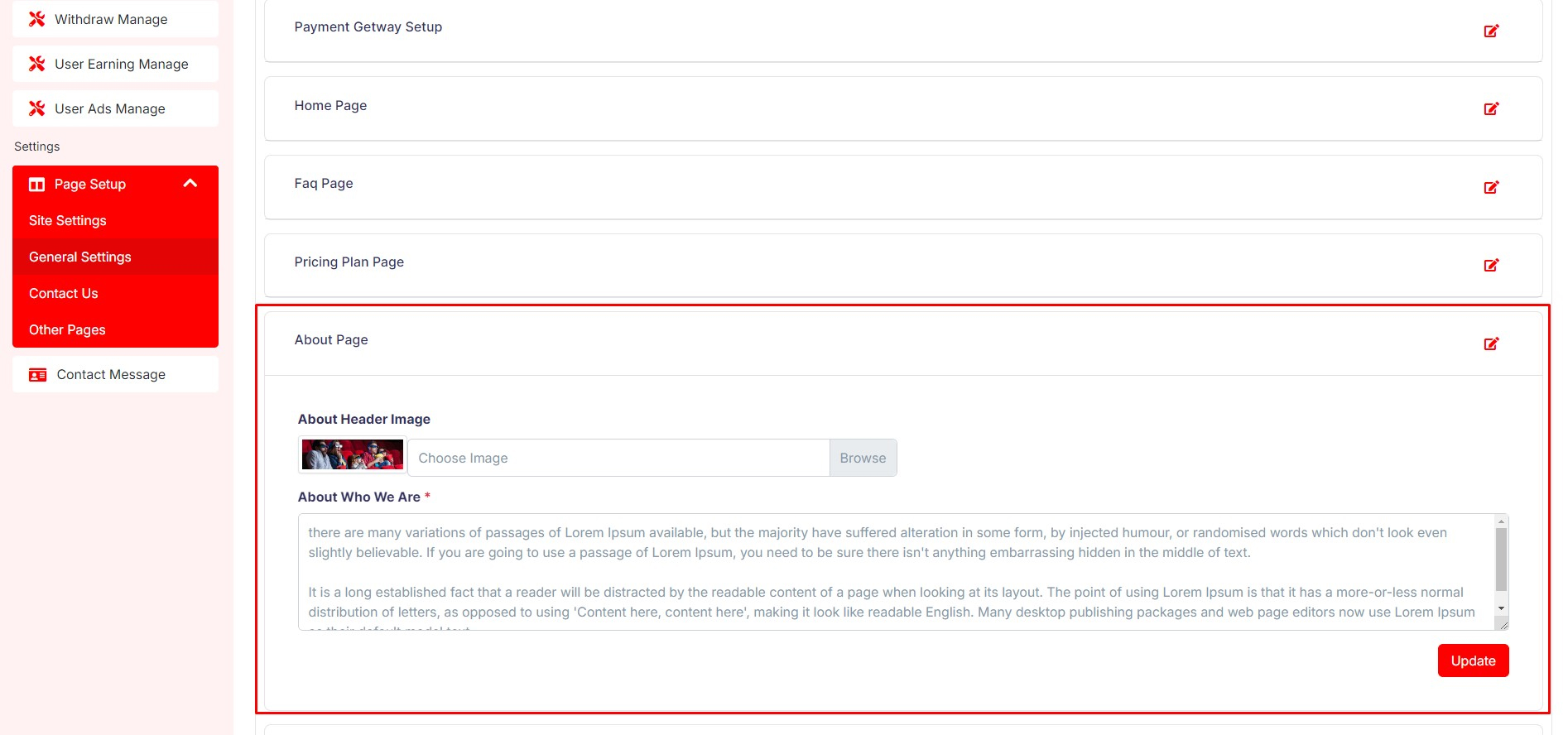
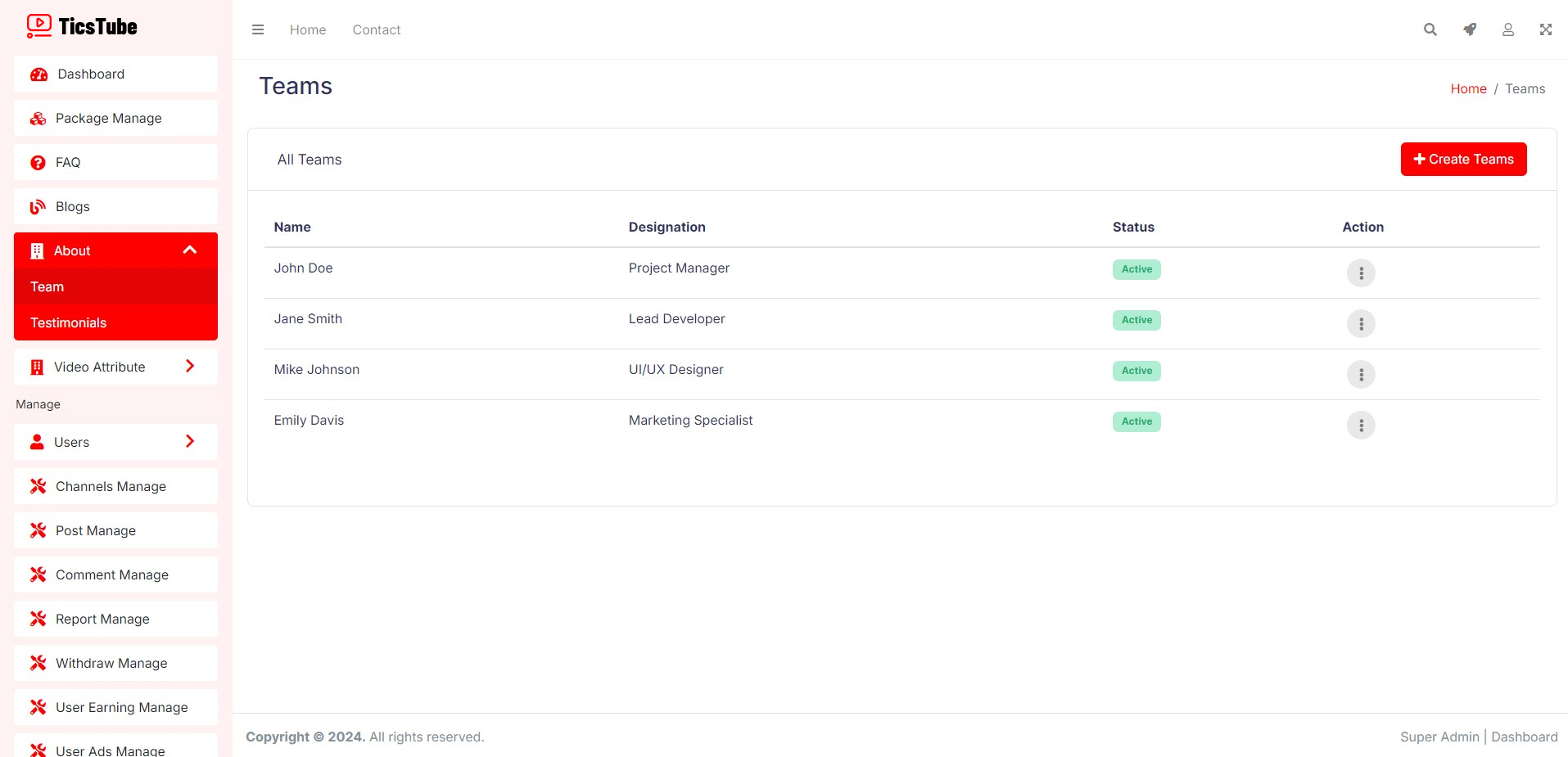
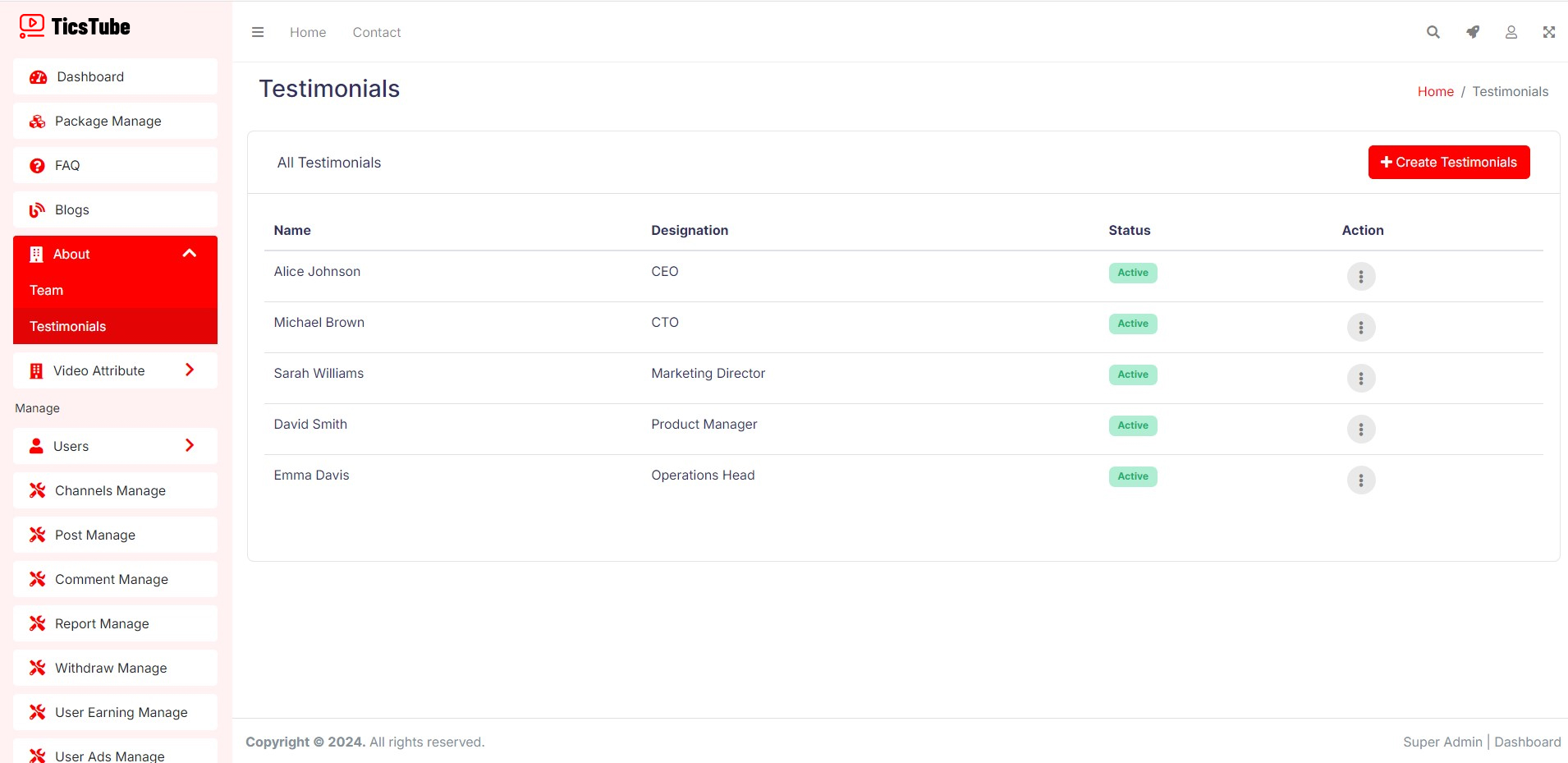
Update About Page details, Team and Testimonials from here.
Follow Steps:
Superadmin Dashboard: Page Setup > General Settings > About Page
Superadmin Dashboard: About > Team
Superadmin Dashboard: About > Testimonials
Contact Page Setup
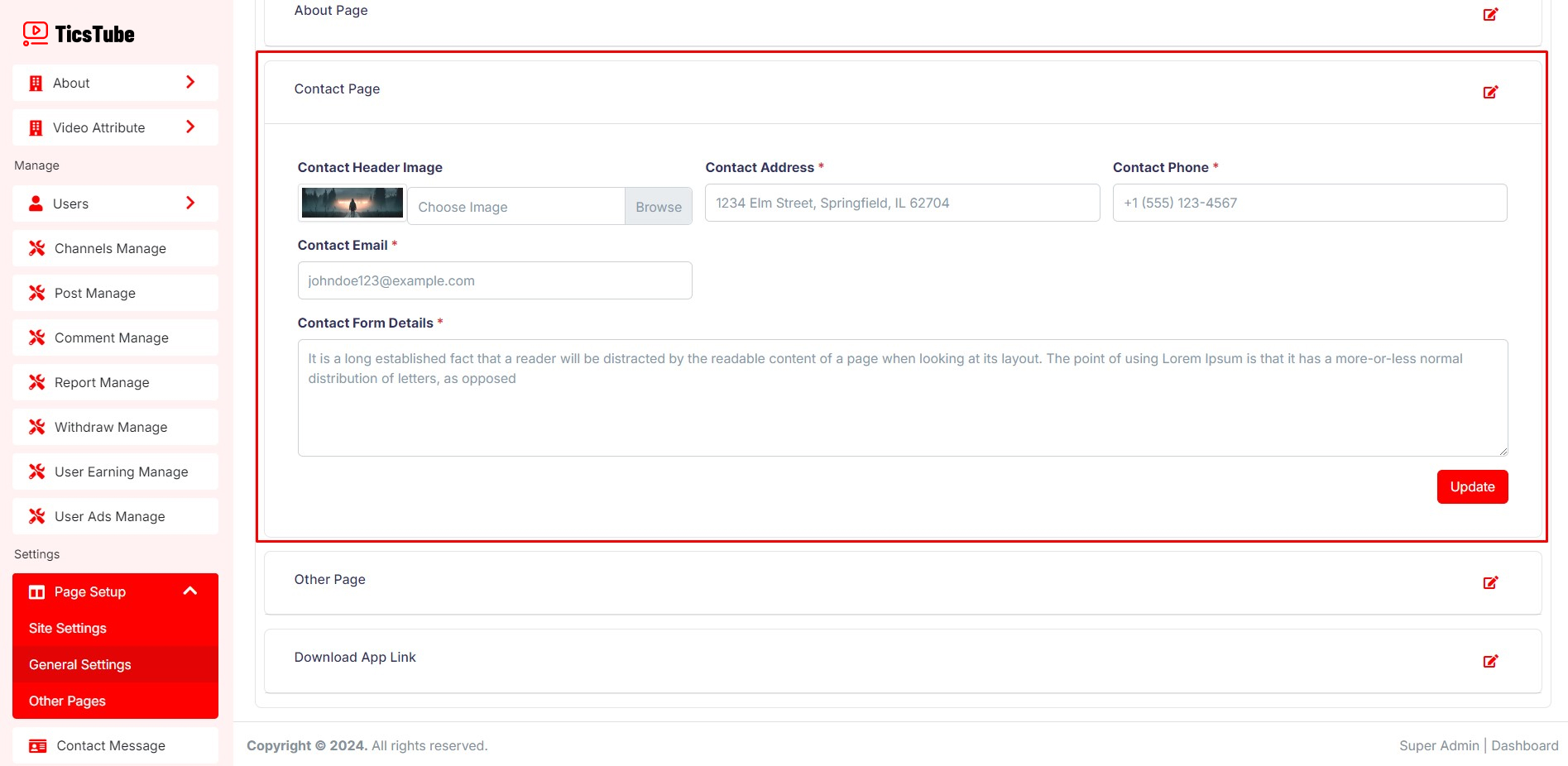
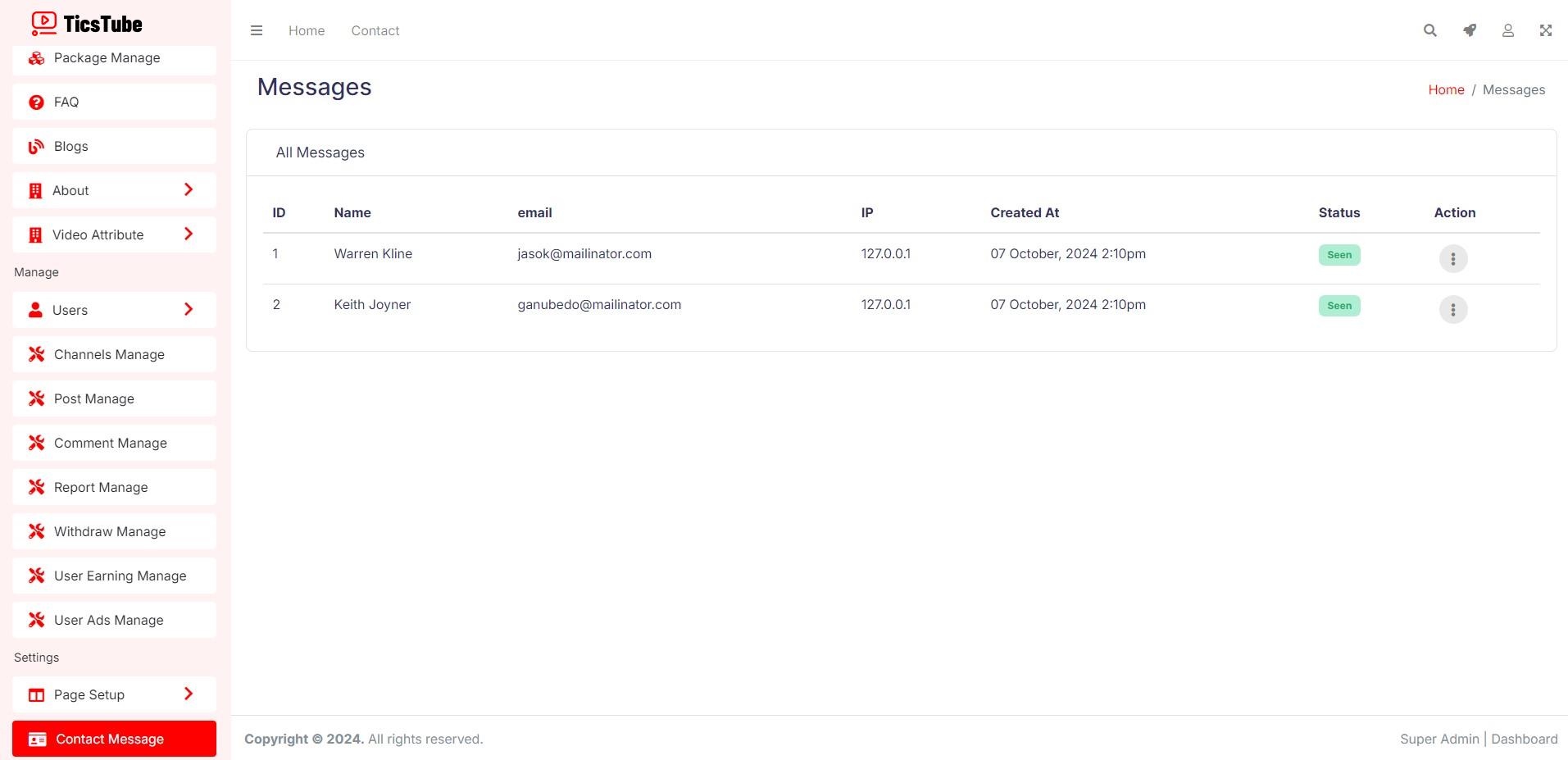
Contact Pages details, contact informations update from here. Also you will get all the messages here.
Follow Steps:
Superadmin Dashboard: Page Setup > General Settings > Contact Page
Superadmin Dashboard: Contact Message
Other Pages Setup
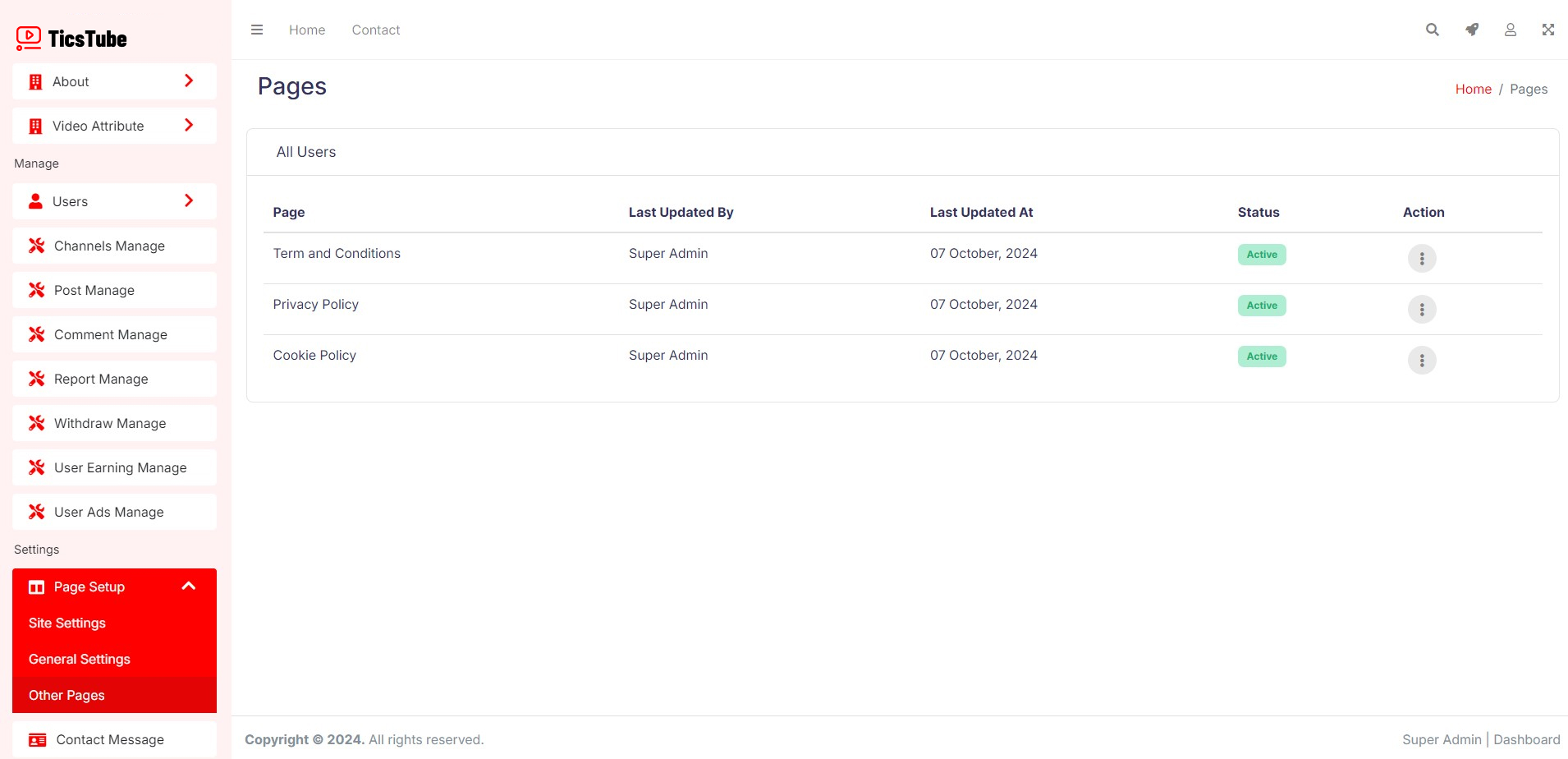
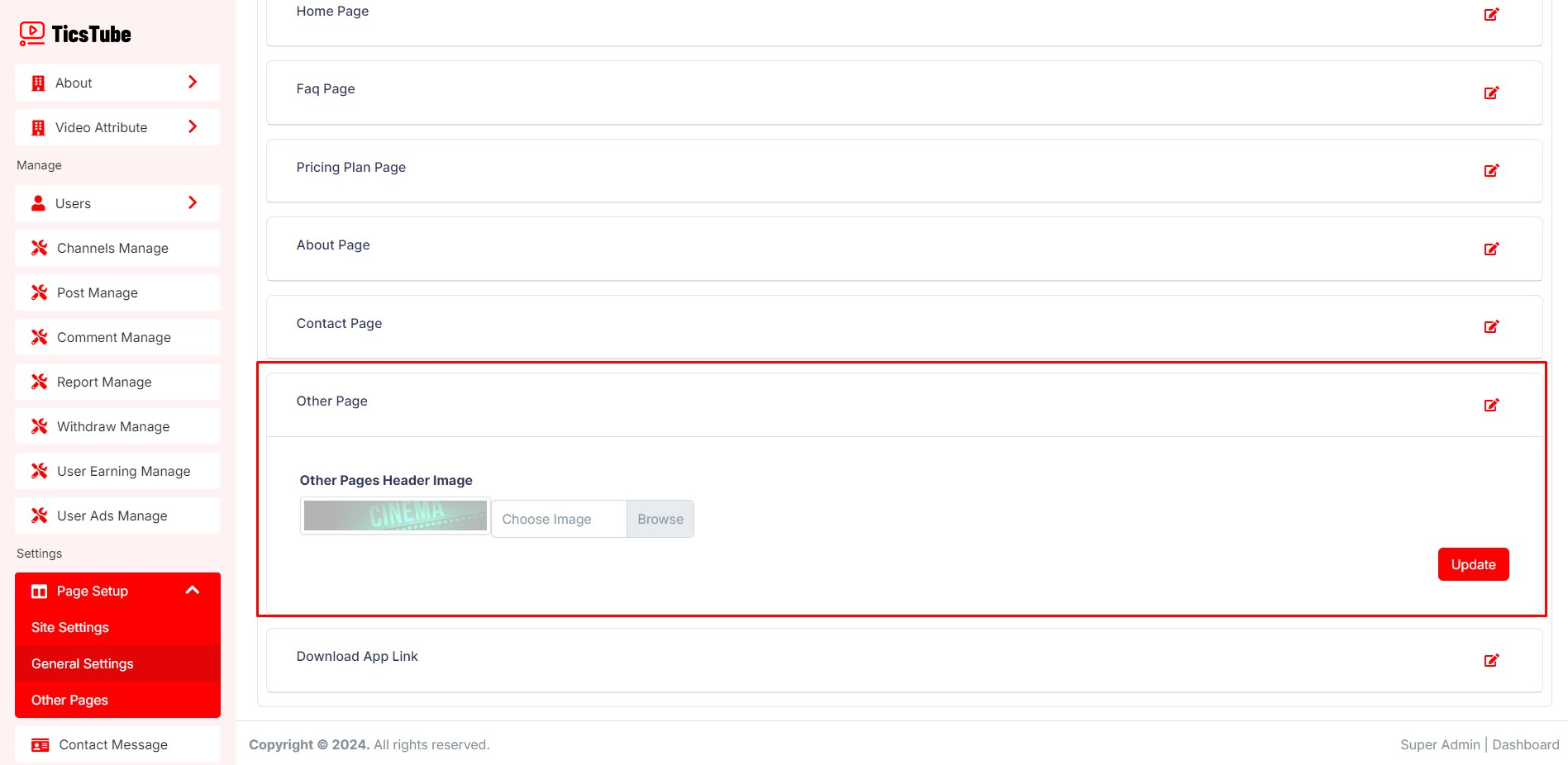
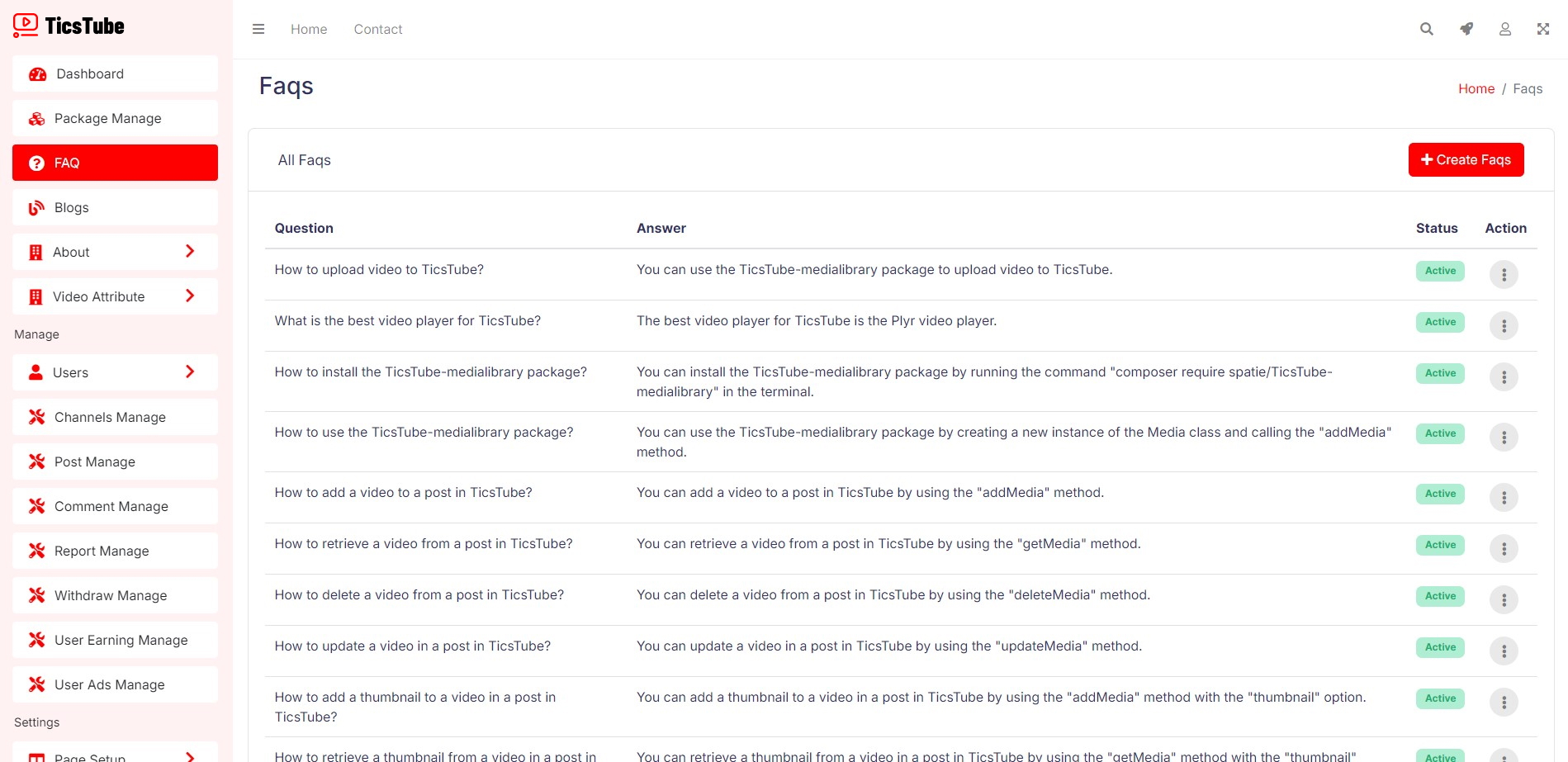
Update Terms and Conditions, Privacy Policy, Cookie Policy pages details from here. There are some other page heading images, you can update from here. Also Update FAQ Page Data
Follow Steps:
Superadmin Dashboard: Page Setup > Other Pages
Superadmin Dashboard: Page Setup > General Settings > Other Pages
Superadmin Dashboard: FAQ
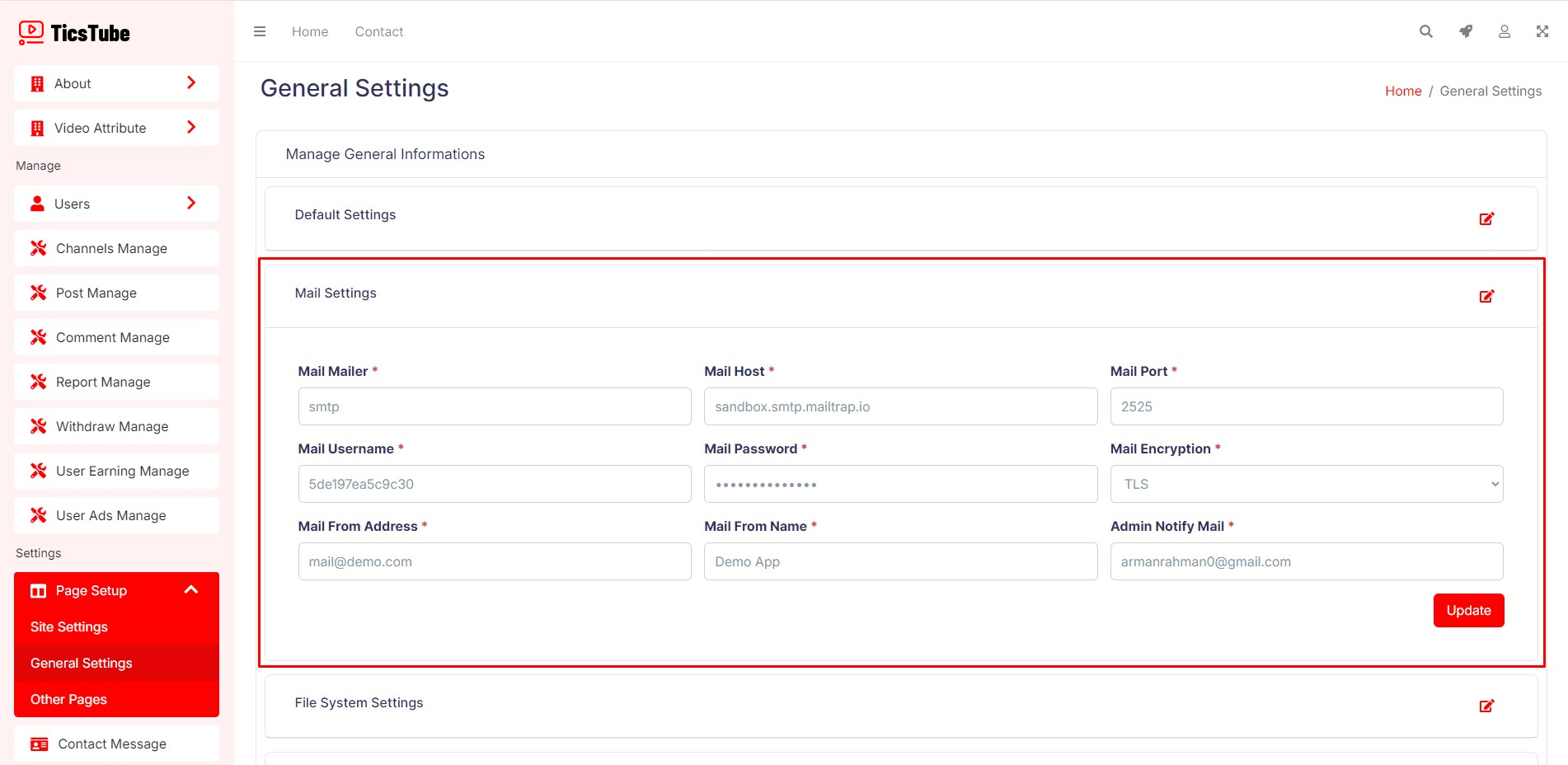
Mail Setup
Update Mail Settings from here.
Follow Steps:
Superadmin Dashboard: Page Setup > General Settings > Mail Settings
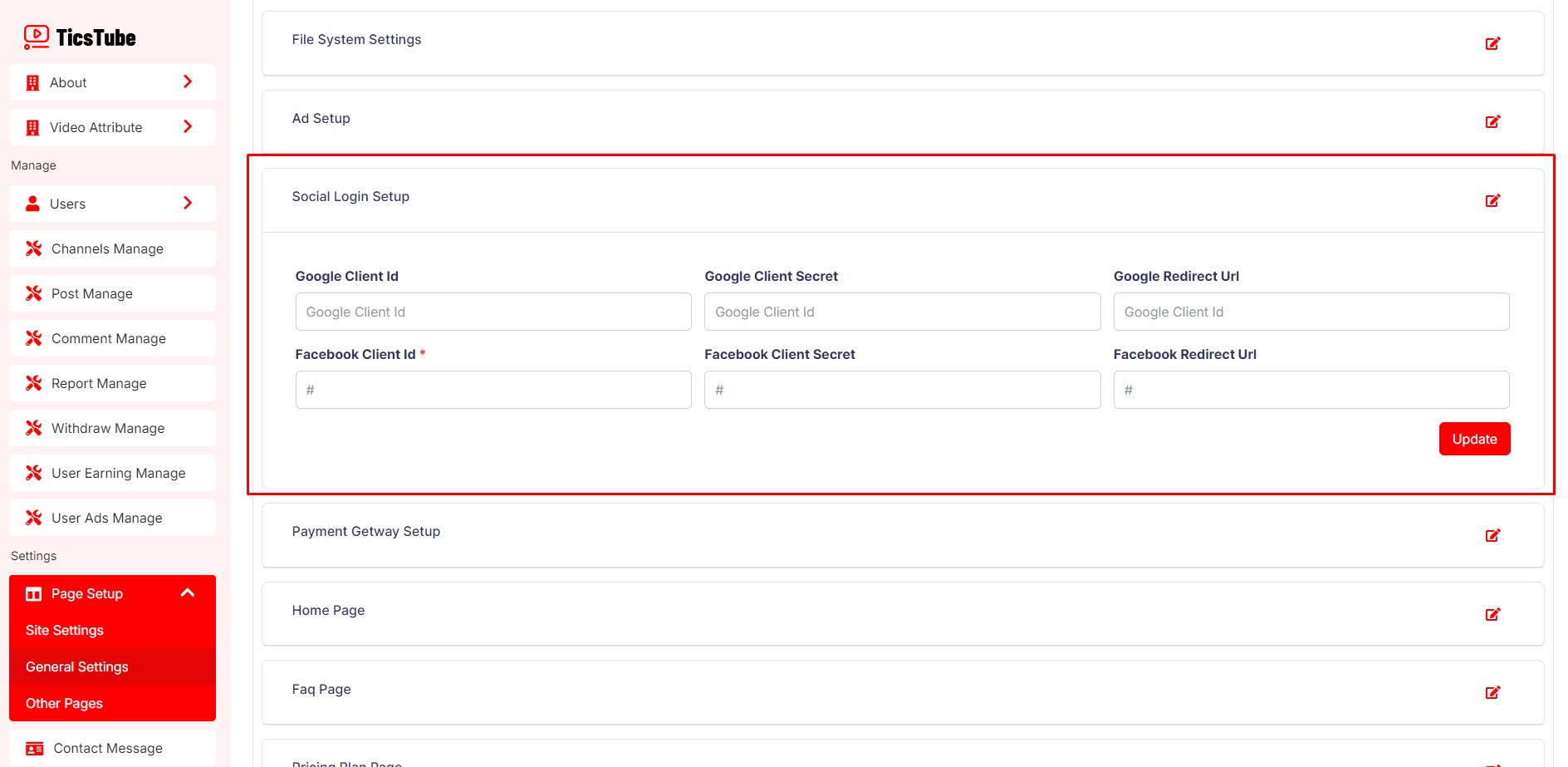
Social Login Setup
Update Google and Facebook Login Credentials from here.
Follow Steps:
Superadmin Dashboard: Page Setup > General Settings > Social Login Setup
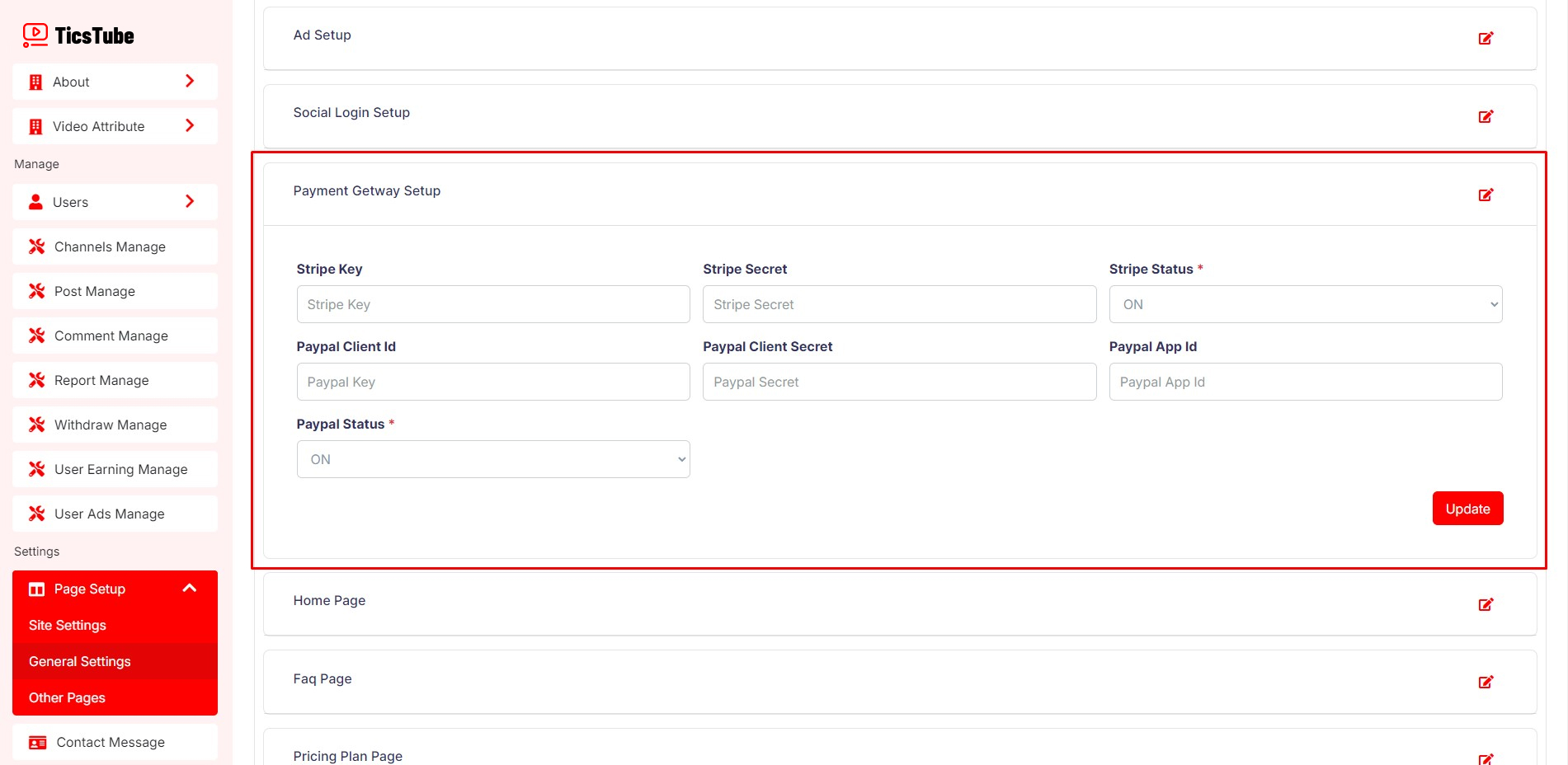
Payment Getway Setup
Update Stripe and Paypal Credentials from here. You can turn on or off payment gateway by update status.
Follow Steps:
Superadmin Dashboard: Page Setup > General Settings > Payment Getway Setup
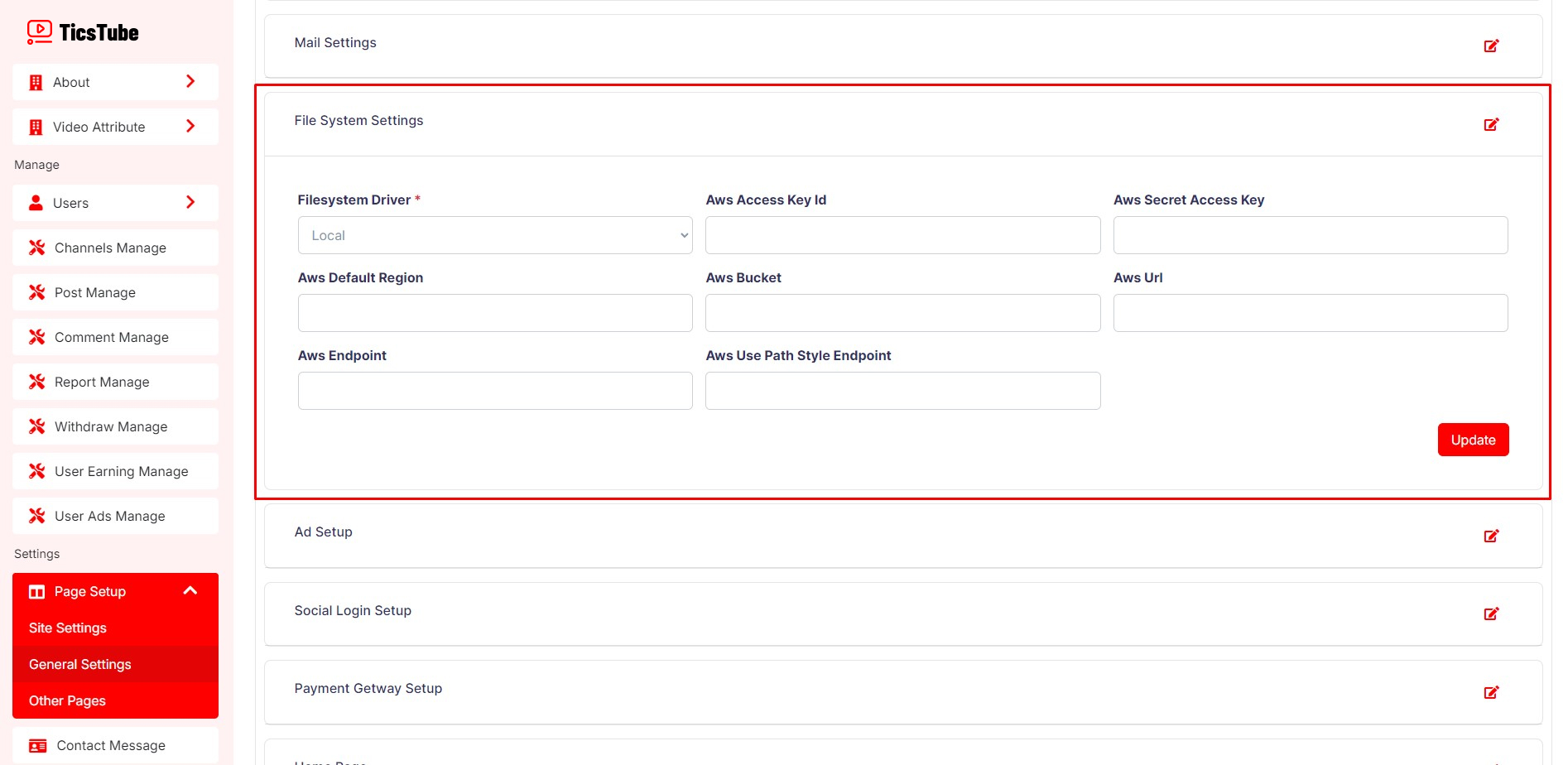
File System Setup
Update File System Settings from here. By default, the file system is set to "Local". If you want to use S3 file system, you can update it from here.
Follow Steps:
Superadmin Dashboard: Page Setup > General Settings > File System Settings
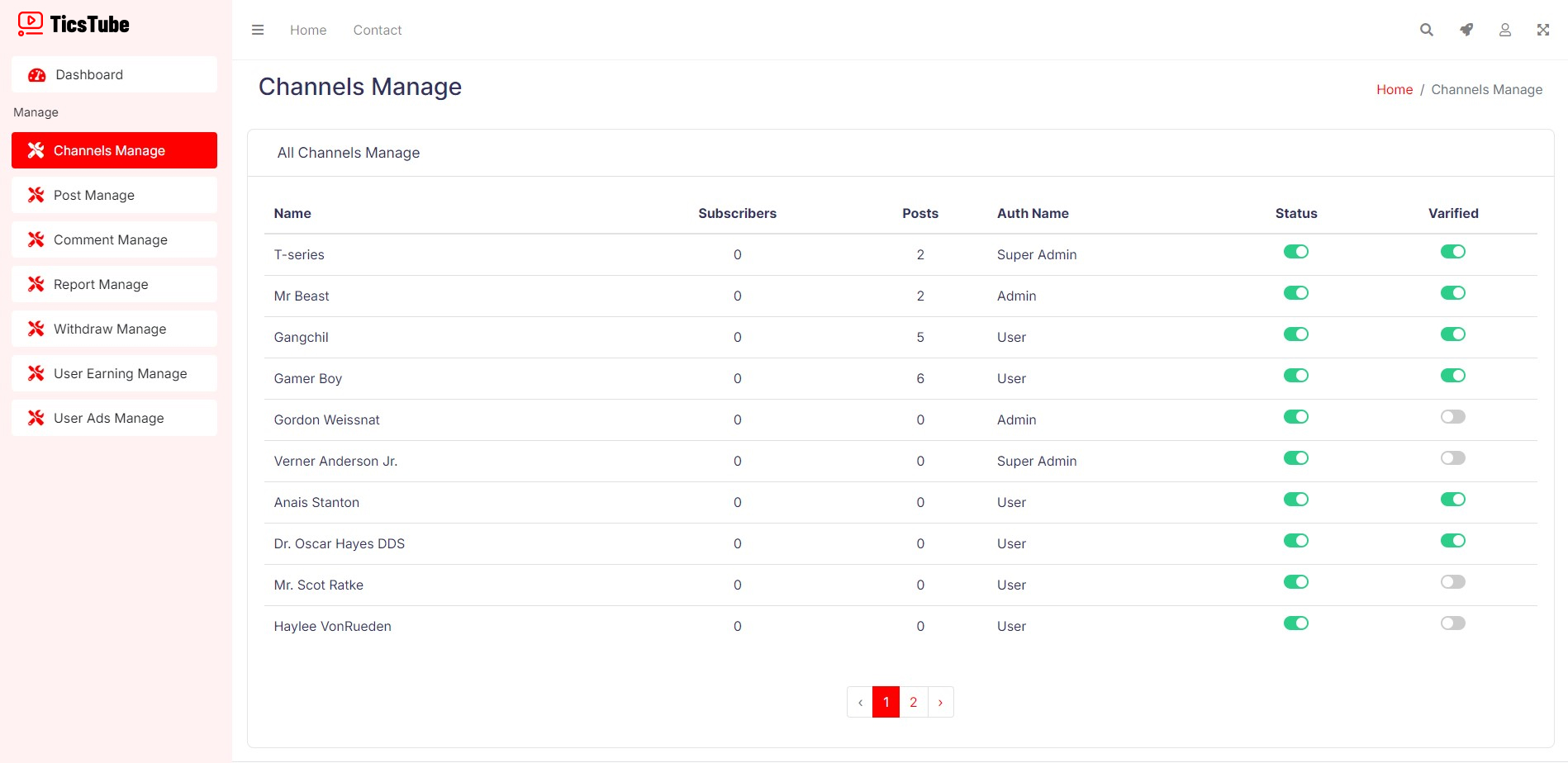
Channel Manage
You can make disable or enable any channel from here. Also you can Verify or Unverify any channel.
Follow Steps:
Admin/Superadmin Dashboard: Channel Manage
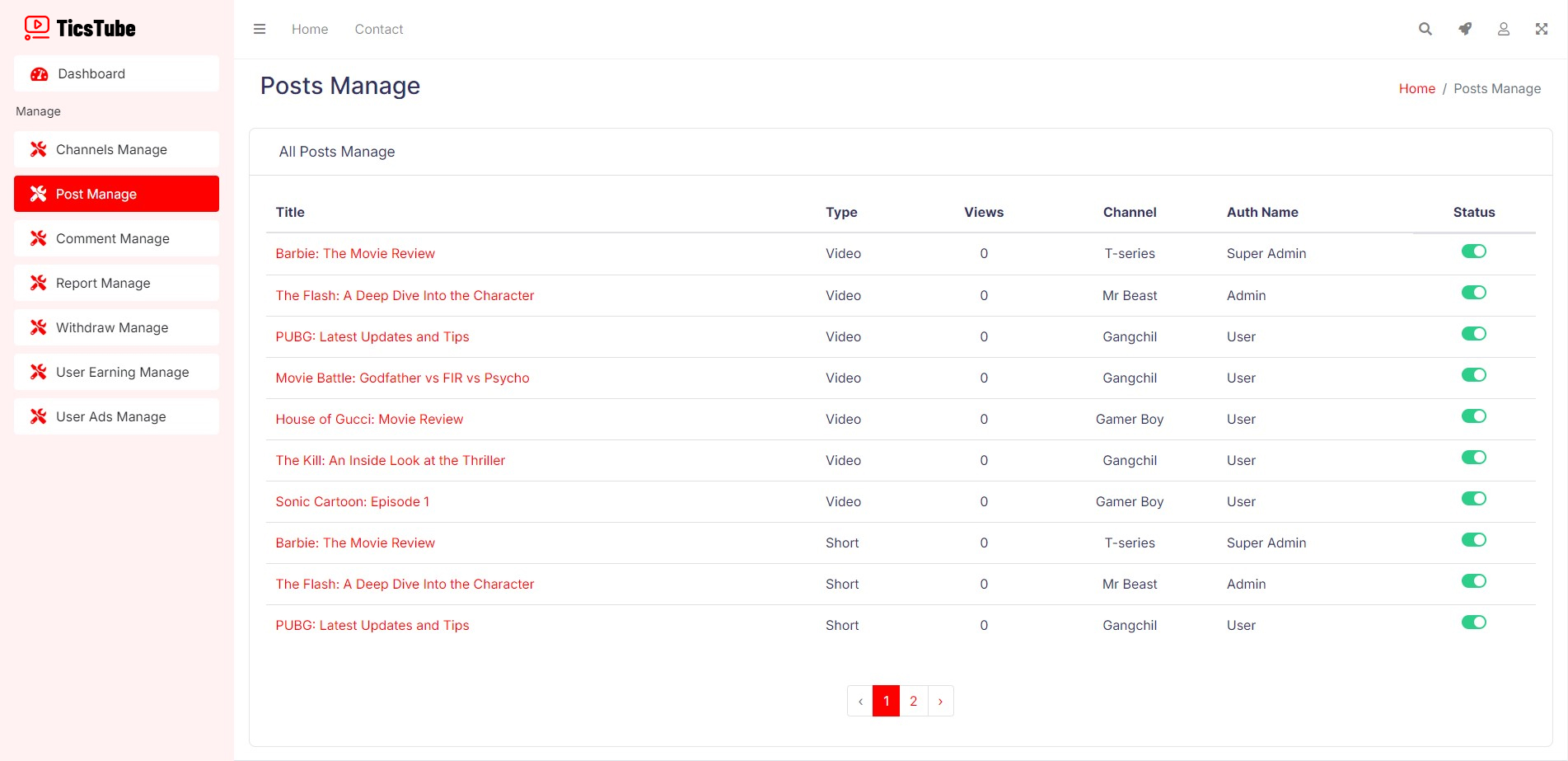
Post Manage
Make any post disable or enable from here. Also can supervise all posts from here.
Follow Steps:
Admin/Superadmin Dashboard: Post Manage
Comment Manage
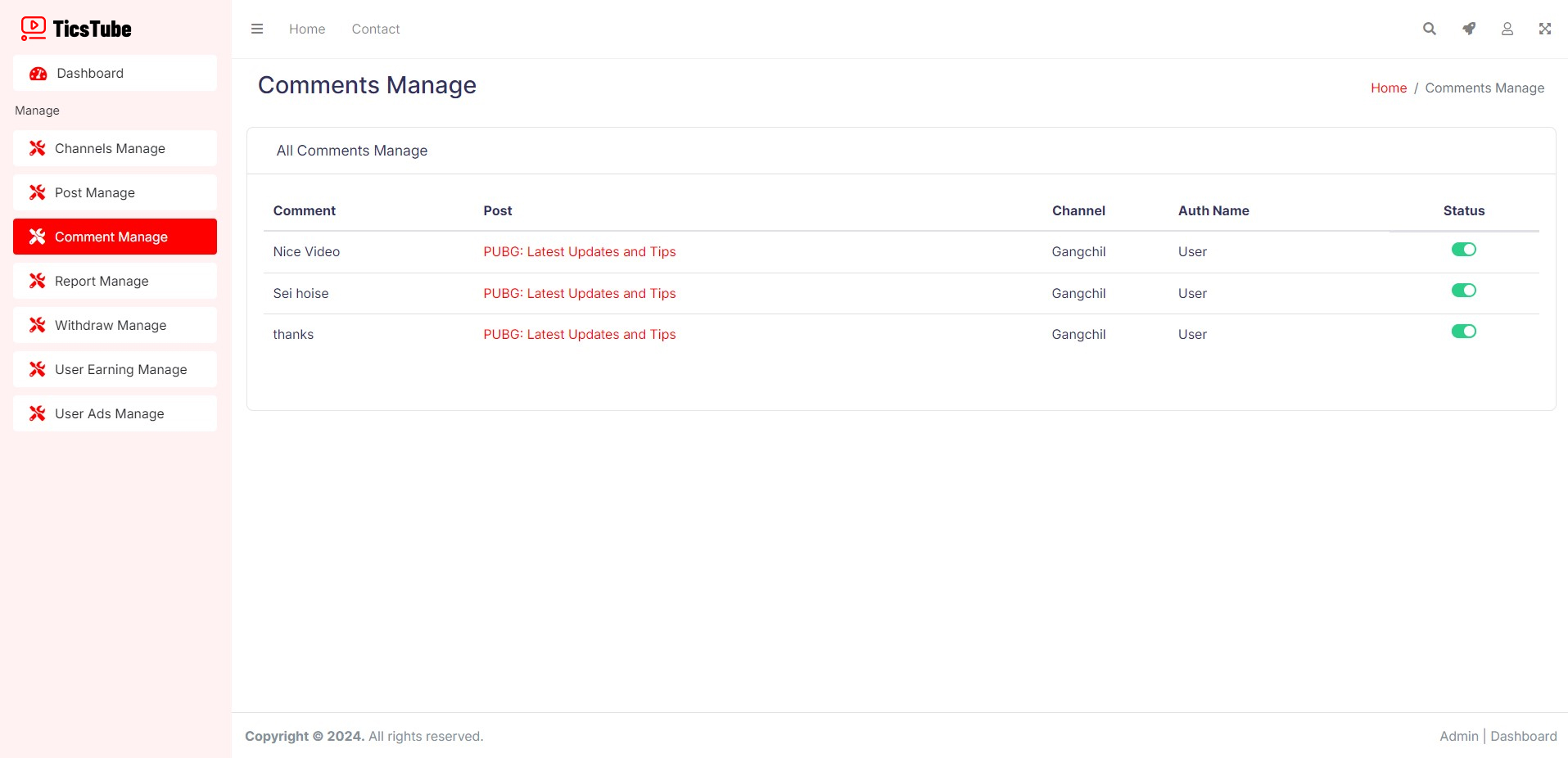
See All comments from here. You can make any comment disable or enable from here.
Follow Steps:
Admin/Superadmin Dashboard: Comment Manage
Report Manage
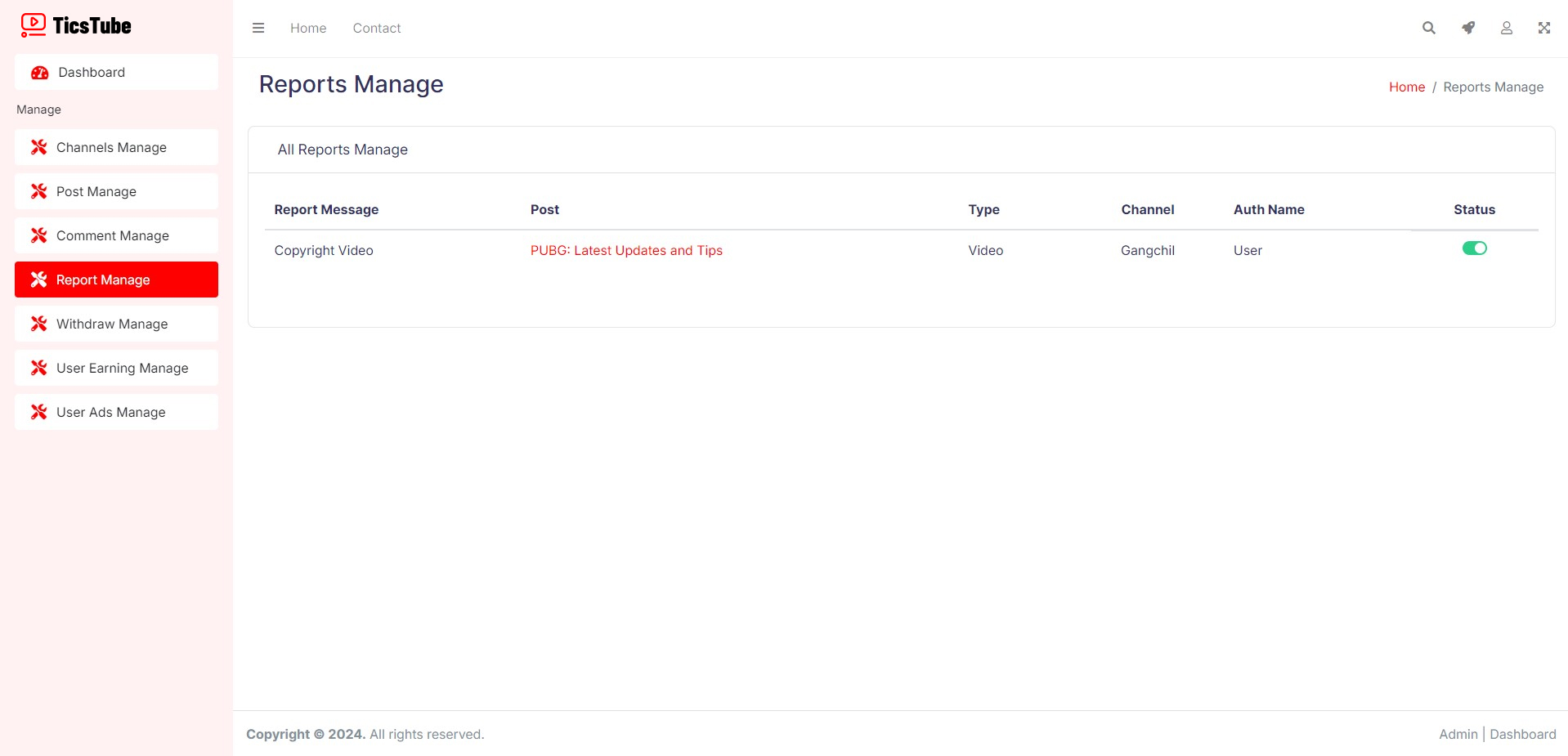
See All reports from here. You can make any post disable or enable from here.
Follow Steps:
Admin/Superadmin Dashboard: Report Manage
Withdraw Manage
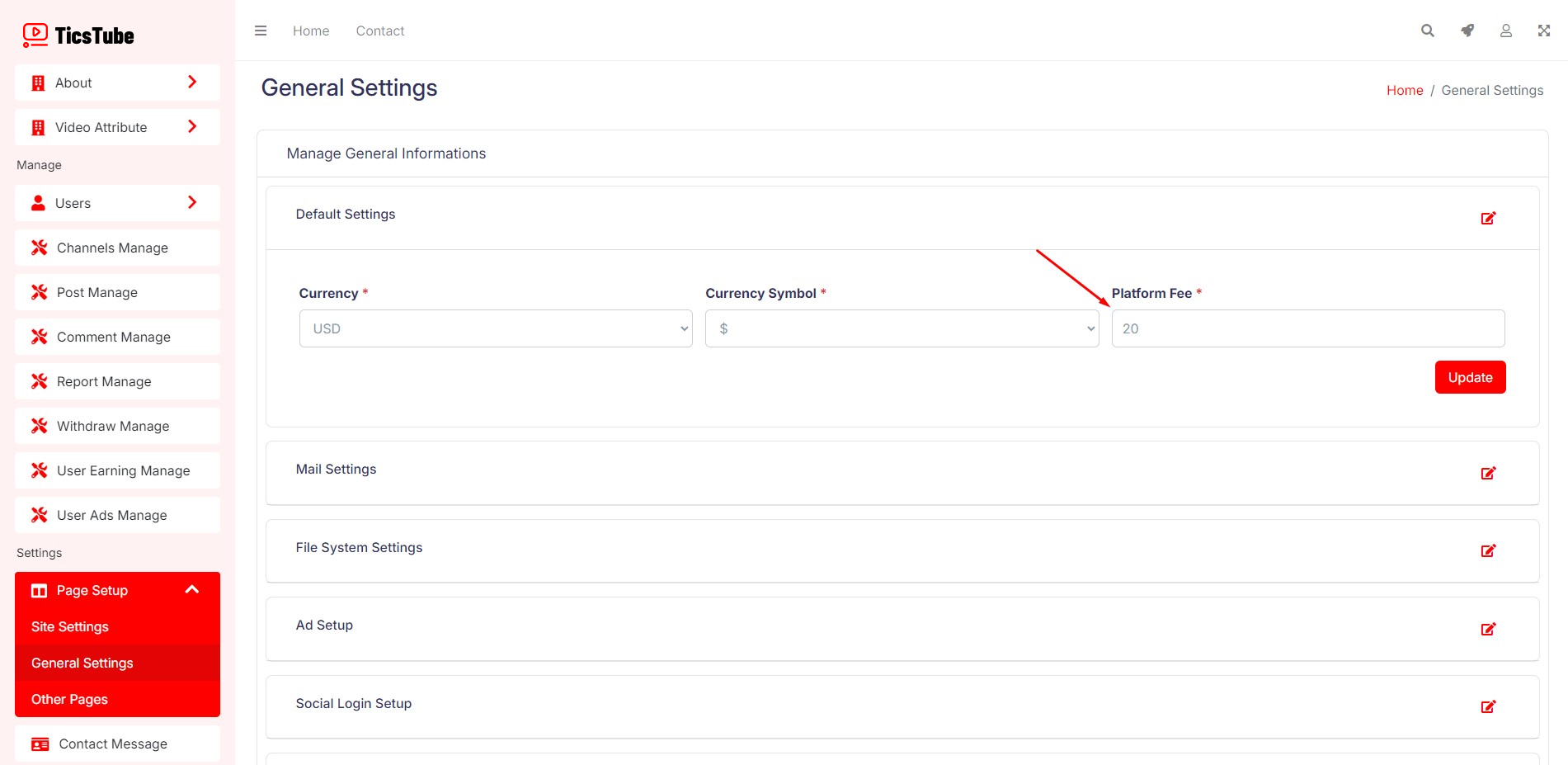
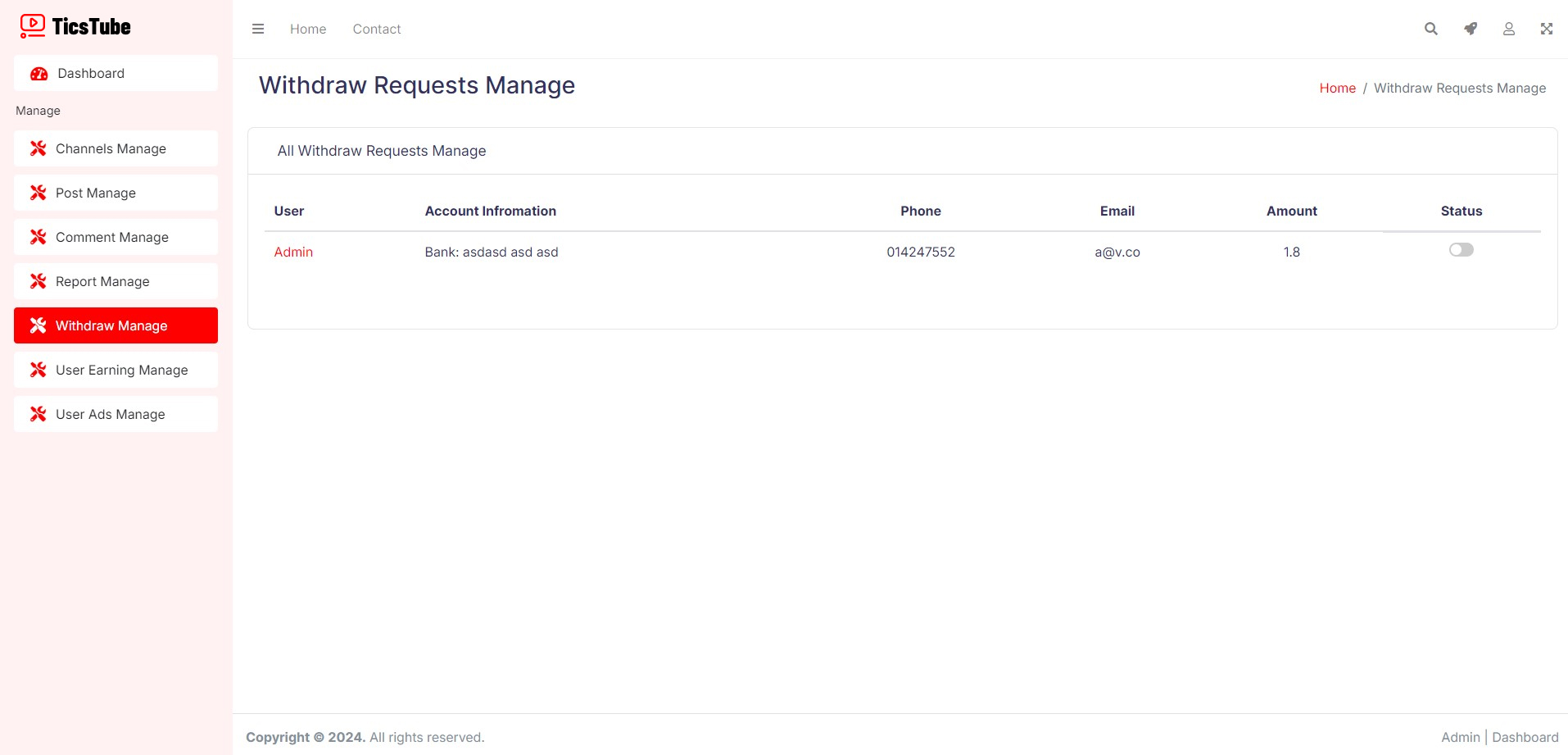
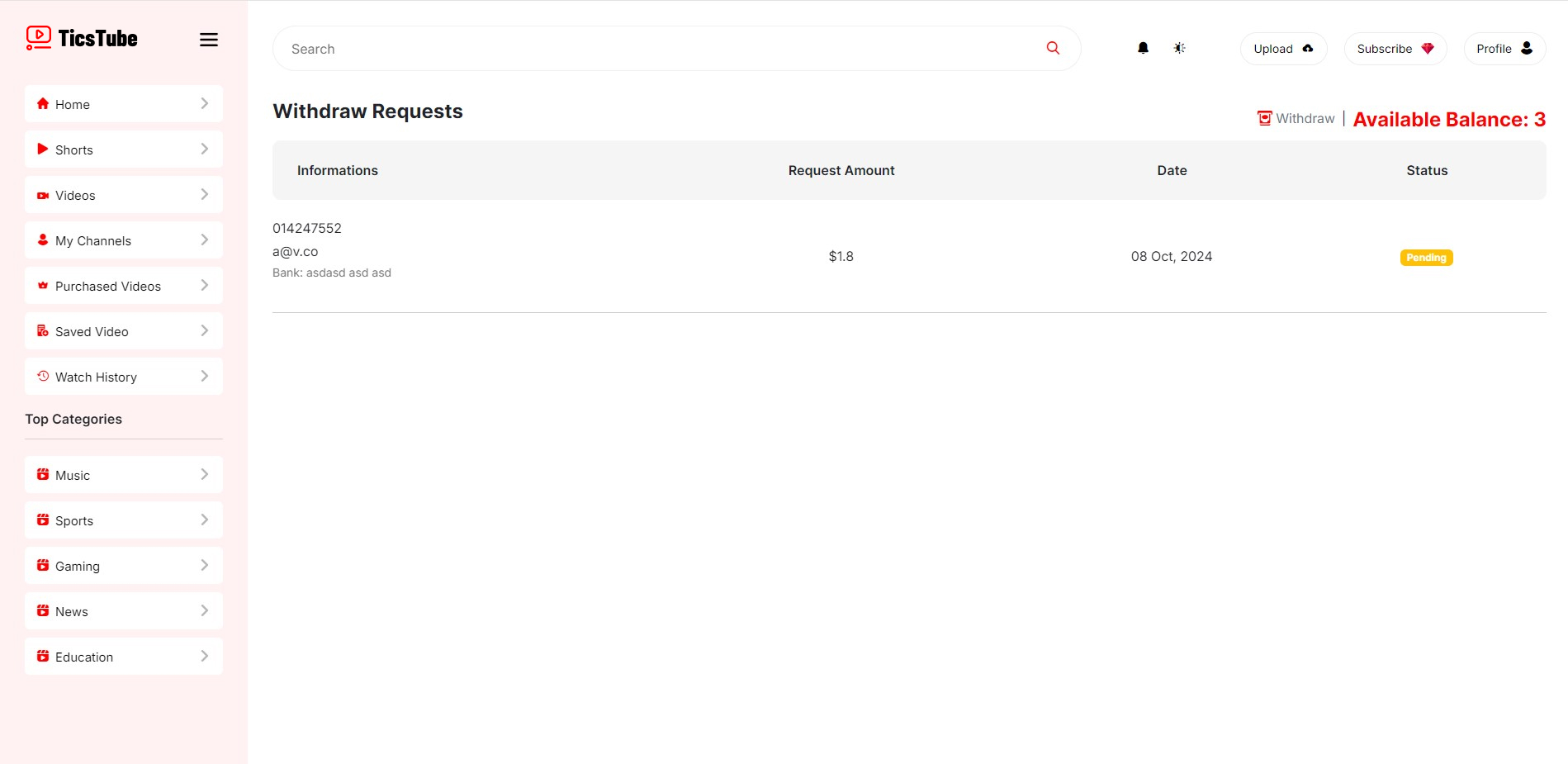
Users can earn money by uploading premium videos. You can set your platform fee of users premium video upload. Also you can manage all users withdraws from here.
Know More About the Fields:
Platform Fee - Set your platform fee of users premium video upload. You will get the amount in every premium video purchase.
Follow Steps:
Superadmin Dashboard: Page Setup > General Settings > Default Settings > Platform Fee
Admin/Superadmin Dashboard: Withdraw Manage
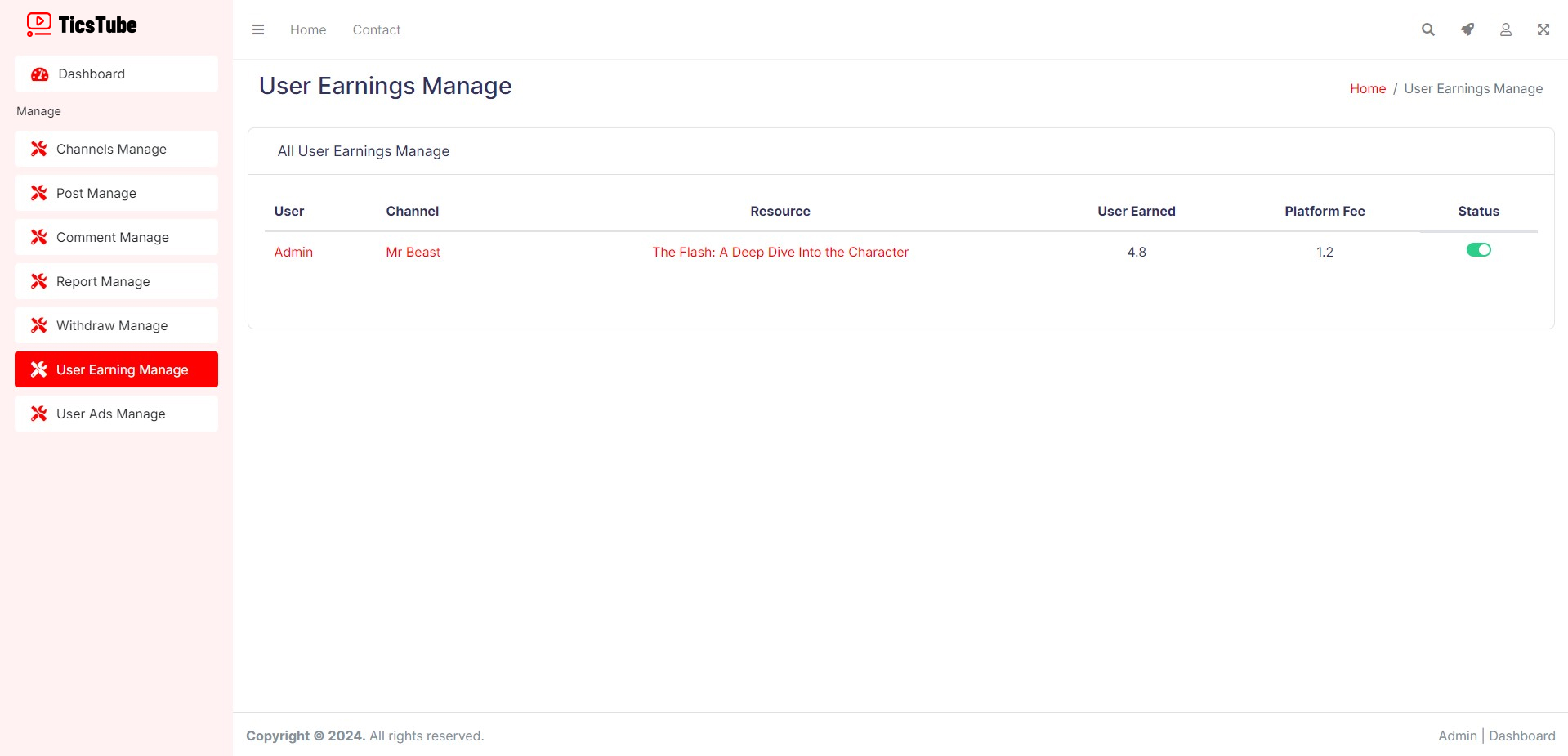
User Earning Manage
When a user purchase a premium video. You can see that log from here. You can enable or disable that log. You can see all user earnings from here.
Follow Steps:
Admin/Superadmin Dashboard: User Earning Manage
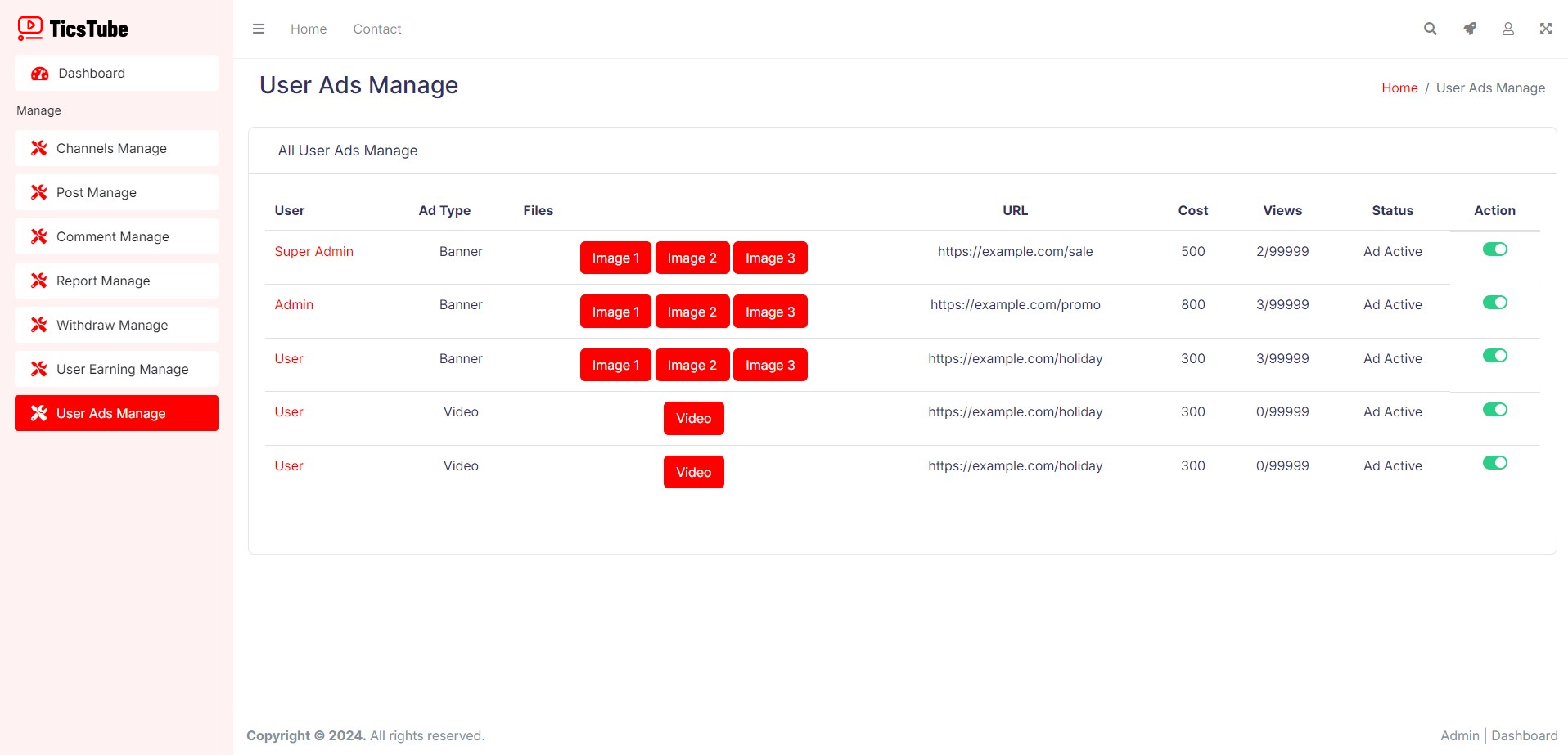
User Ads Manage
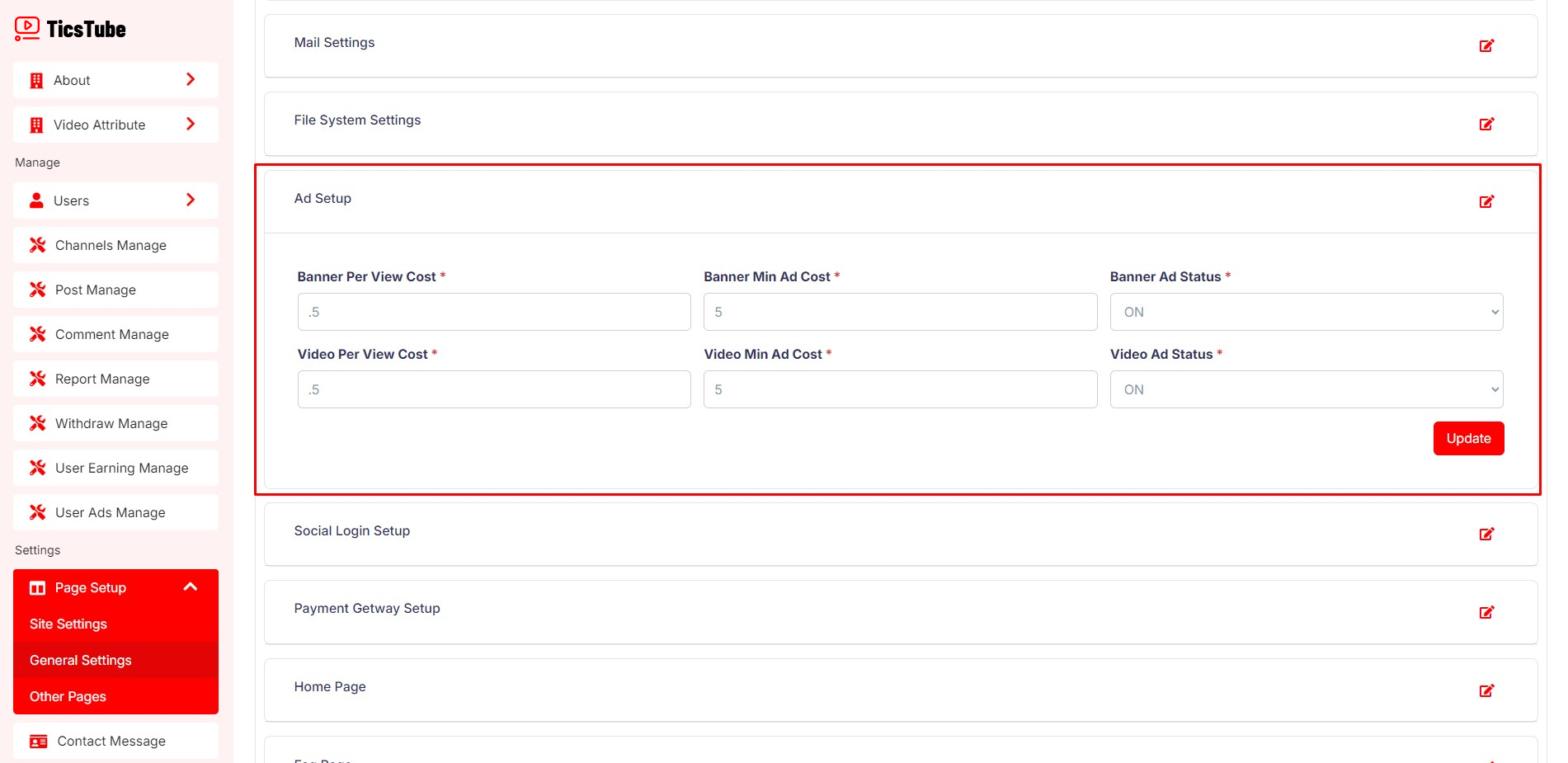
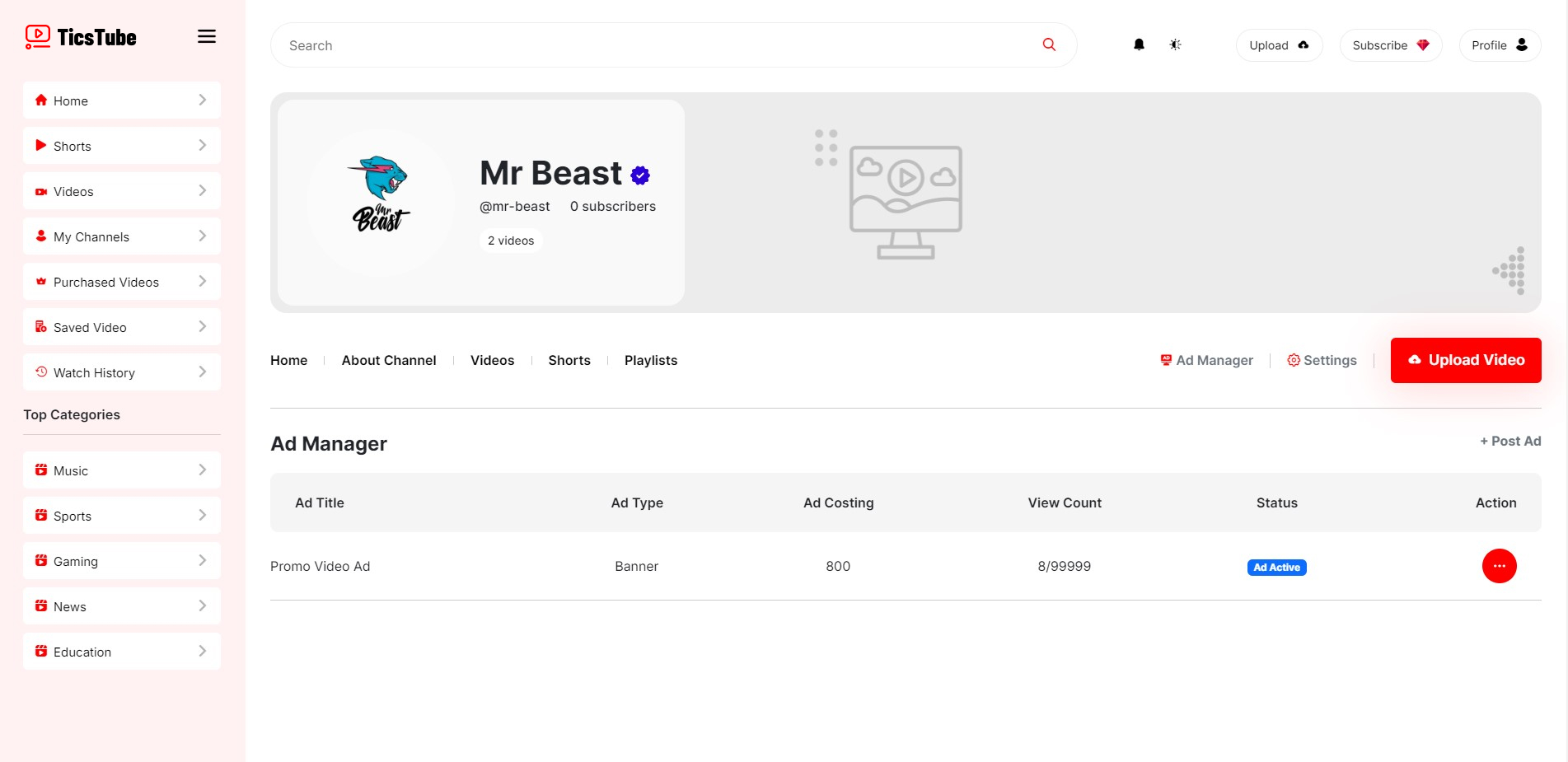
Here users can post ads on TicsTube Script. On Superadmin Dashboard, you can set Banner per view cost, Banner Minimum ad Cost, Banner Ad Status, Video Per View Cost, Video Minimum Ad Cost, Video Ad Status. Also you can monitor and manage all user ads from here.
Know More About the Fields:
Banner Per View Cost - Per one time show a ad on the page will diduct this amount from ad campain budget.
Banner Minimum ad Cost - Minimum amount that will need to set on a banner ad campain budget.
Banner Ad Status - Banner ad campain status. This will show or hide banner ad campain on ad posting.
Video Per View Cost - Per one time show a ad on the video will diduct this amount from ad campain budget.
Video Minimum ad Cost - Minimum amount that will need to set on a video ad campain budget.
Video Ad Status - Video ad campain status. This will show or hide video ad campain on ad posting.
Follow Steps:
Superadmin Dashboard: Page Setup > General Settings > Default Settings > Ad Setup
Admin/Superadmin Dashboard: User Ads Manage
Post Video/Short
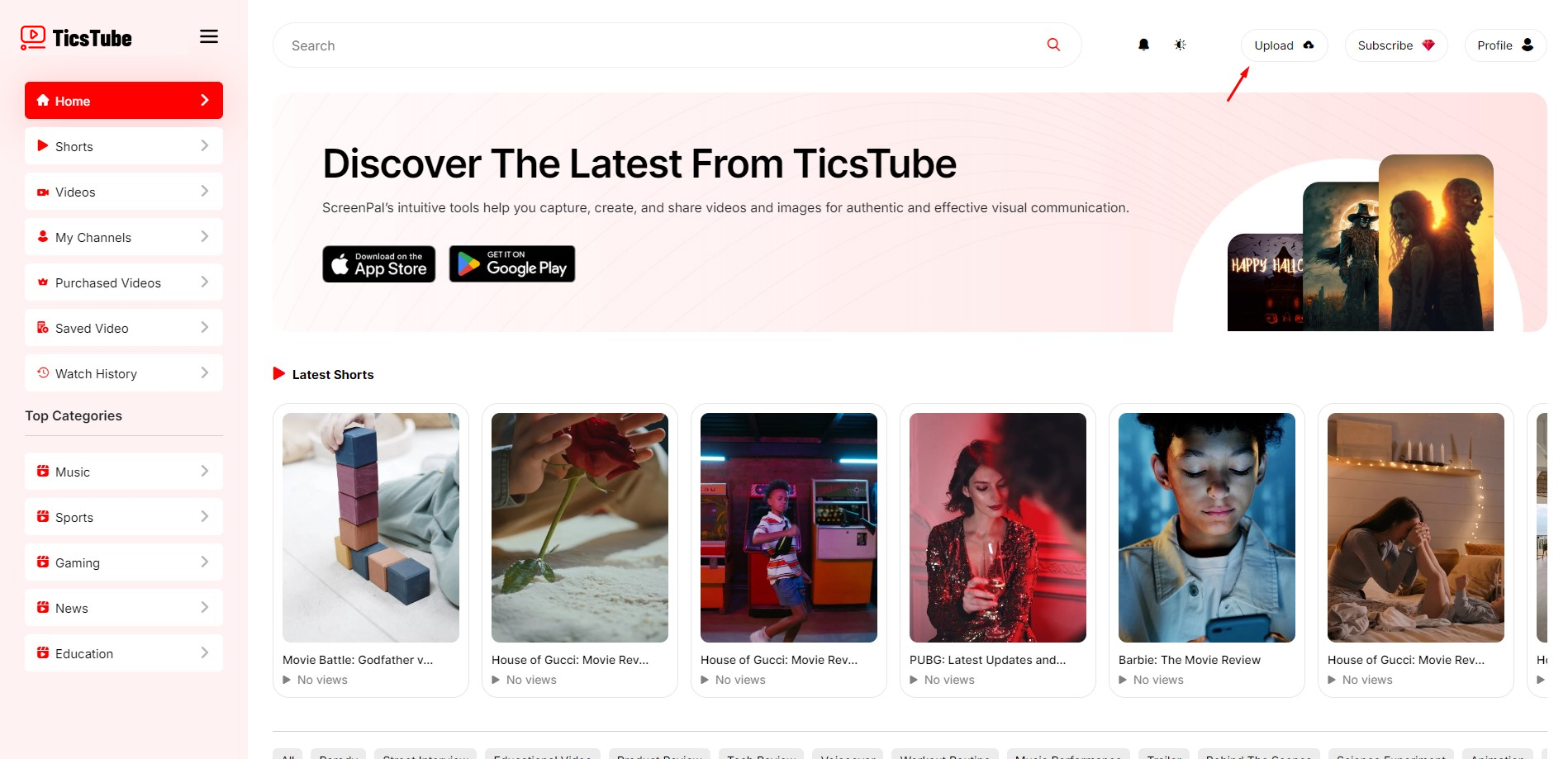
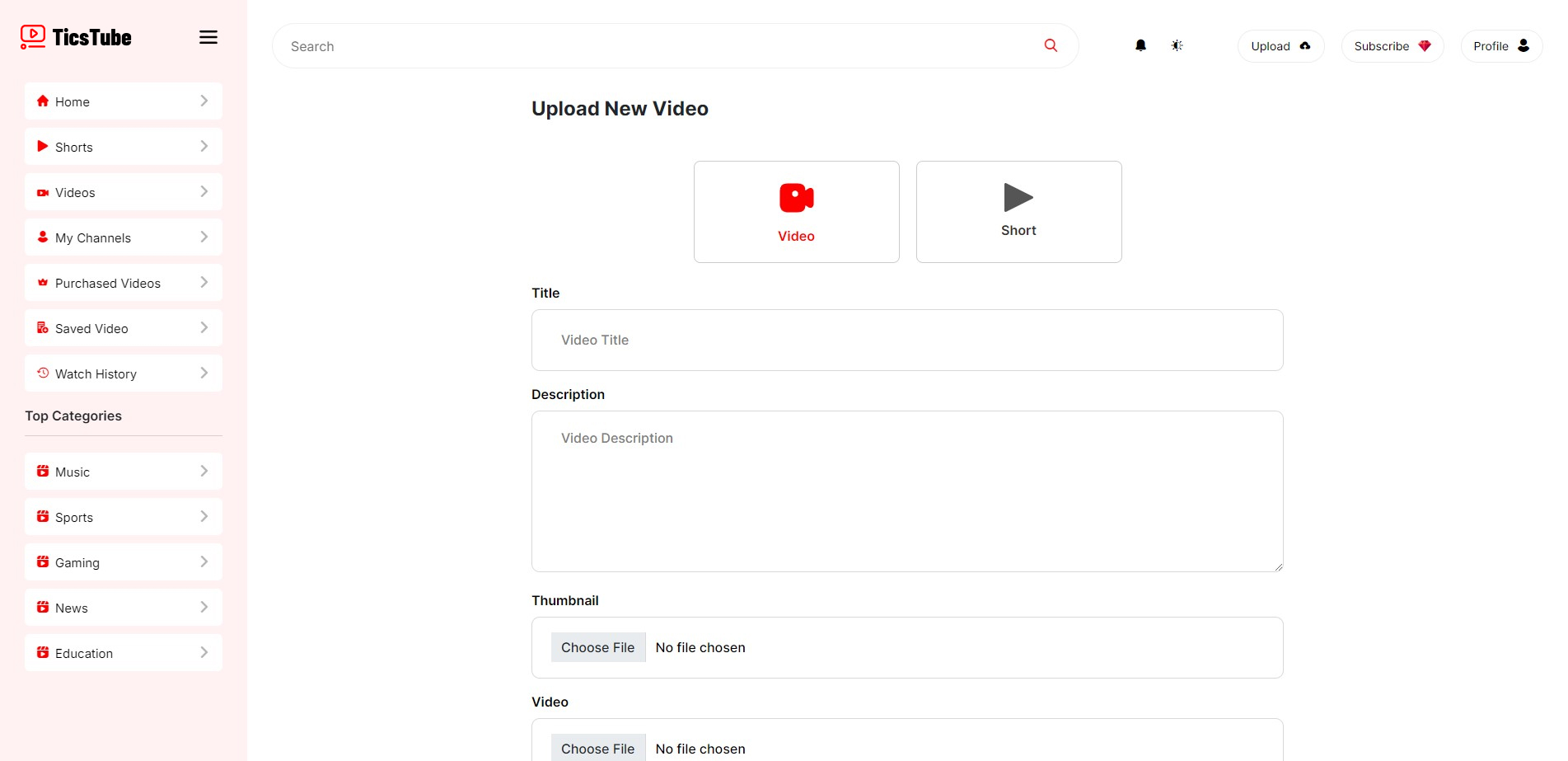
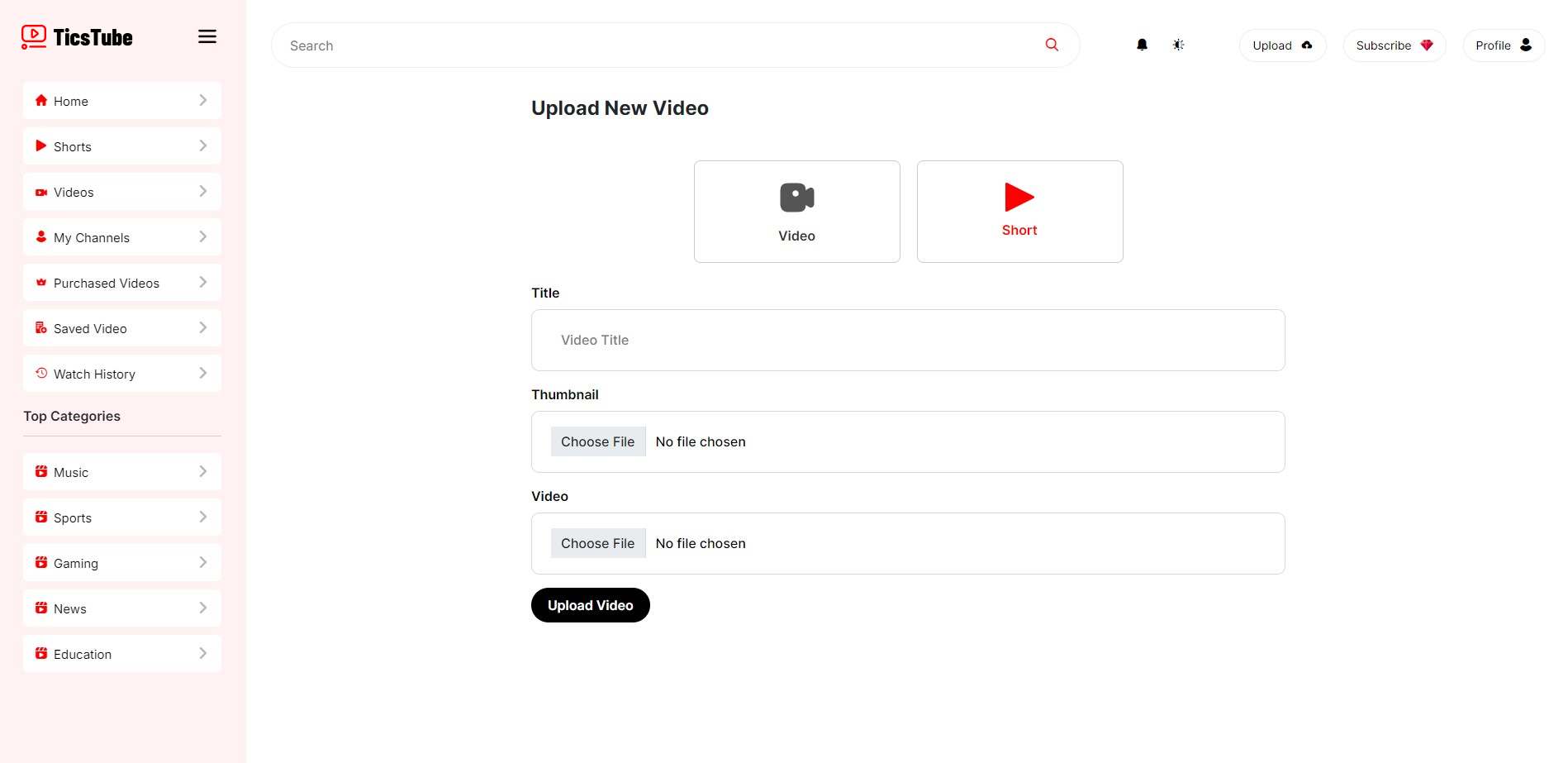
Upload videos or shorts seamlessly on TicsTube Script. From a single page, you can choose whether to post a video or a short—just select your desired option and share your content effortlessly.
Know More About the Fields:
Title - This will be displayed on the video card and page, and it helps your content appear in search results.
Thumbnail - This will be shown on both the video card and page.
Video - This is the content you want to post.
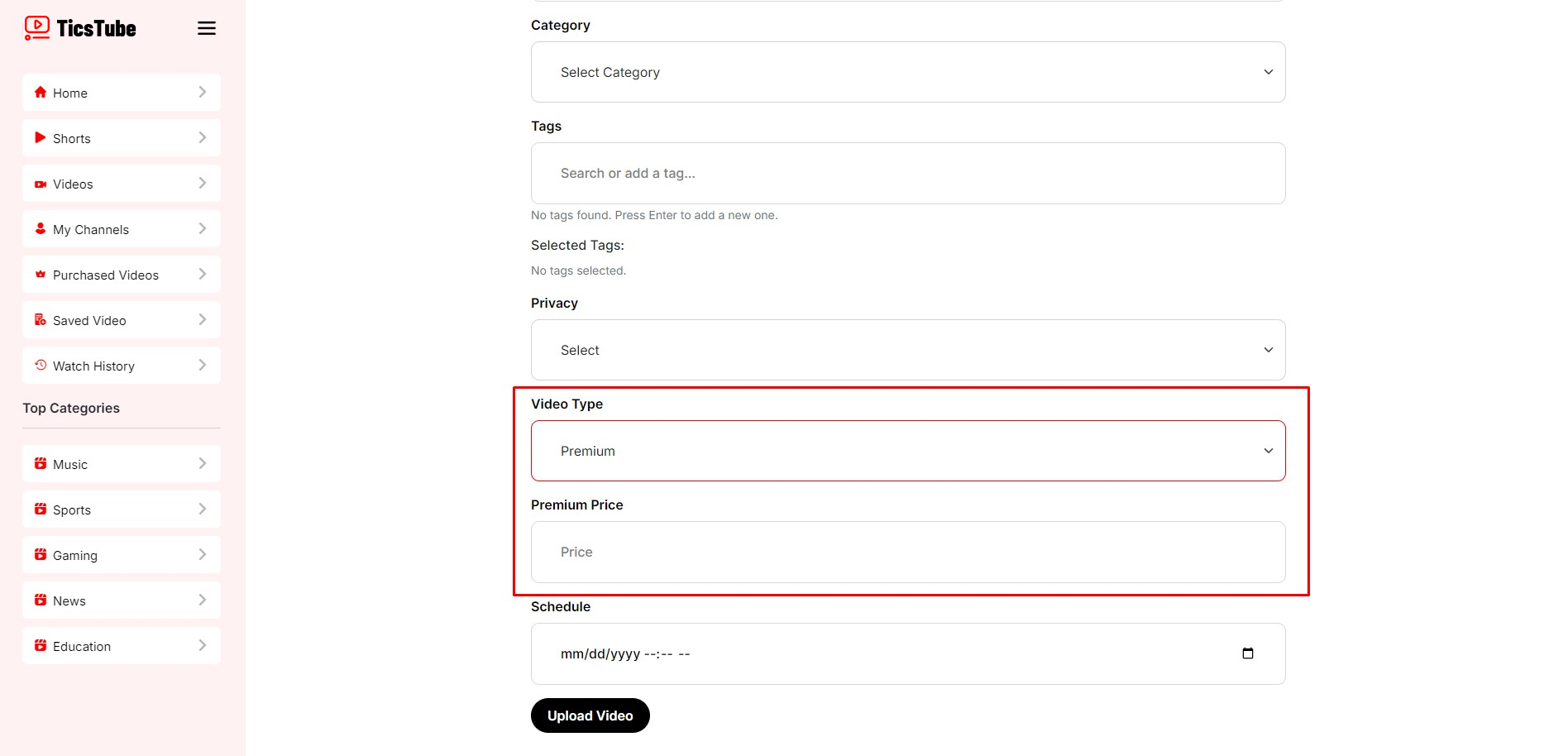
Category - This helps categorize your video, making it easier for users to find through the category filters.
Tags - Tags help your video reach the target audience who are interested in this type of content.
Privacy - You can control the availability of your video by setting privacy options: Private, Unlisted, or Public.
- Public: Your video will be available to everyone.
- Unlisted: Only users with the shareable link can view this video. This setting prevents the video from showing up in search results and other filters.
- Private: Your video will be unavailable to others.
Video Type - You can post free or premium videos. By default, it is set to Free. To post premium content, switch to Premium and set a price.
- Free: Videos are free by default.
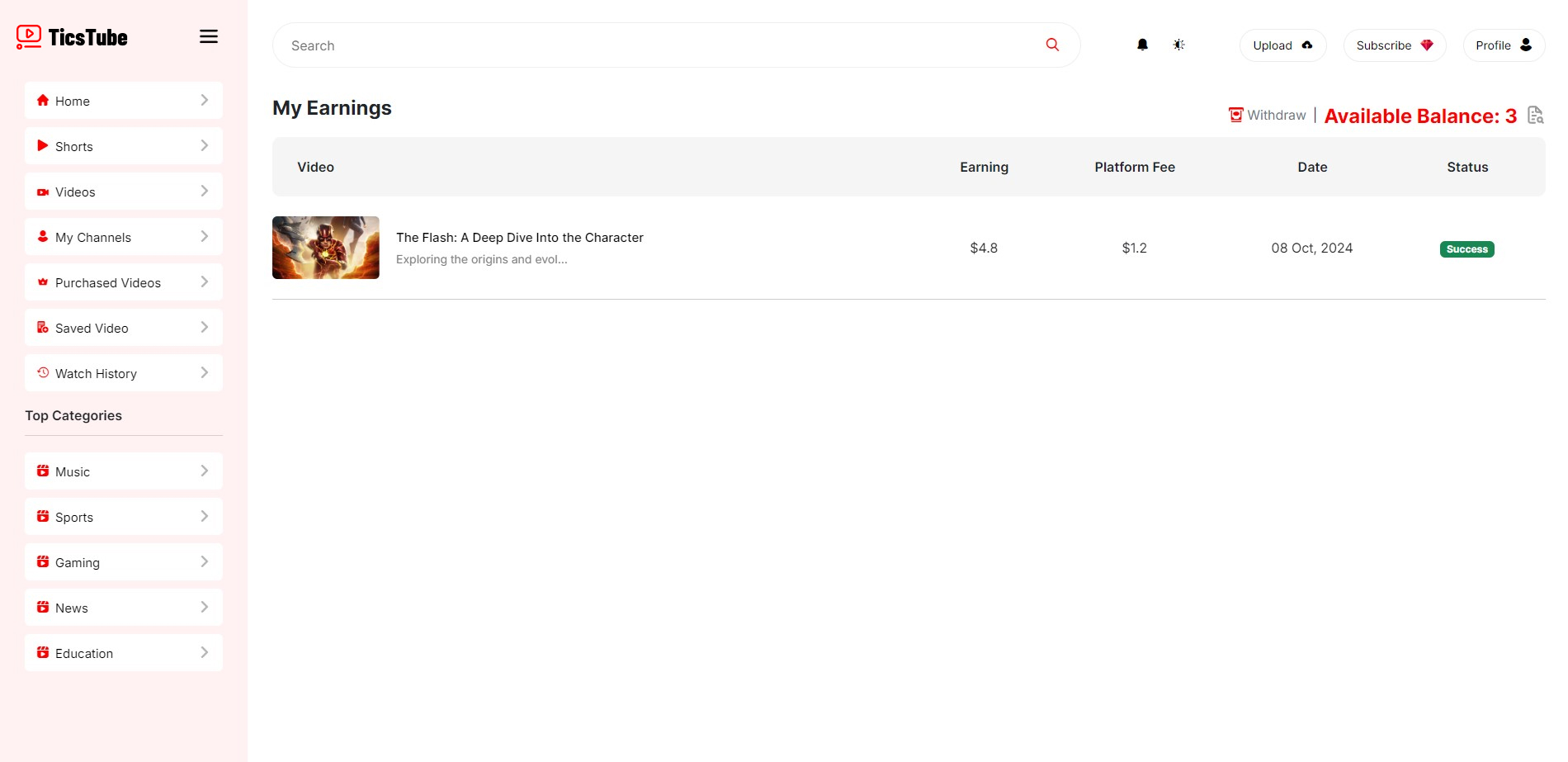
- Premium: Earn revenue by posting premium videos. Your earnings will be shown on your earnings page. Link: Go to Earnings
Schedule - By default, your video will be posted immediately. However, you can schedule it to post at a later time.
Post Premium Video
While Posting a Video, User just have to set post type to premium and set a price. User can see Users earnings on the earnings page and also user can Withdraw ysers earnings.
Post Ad
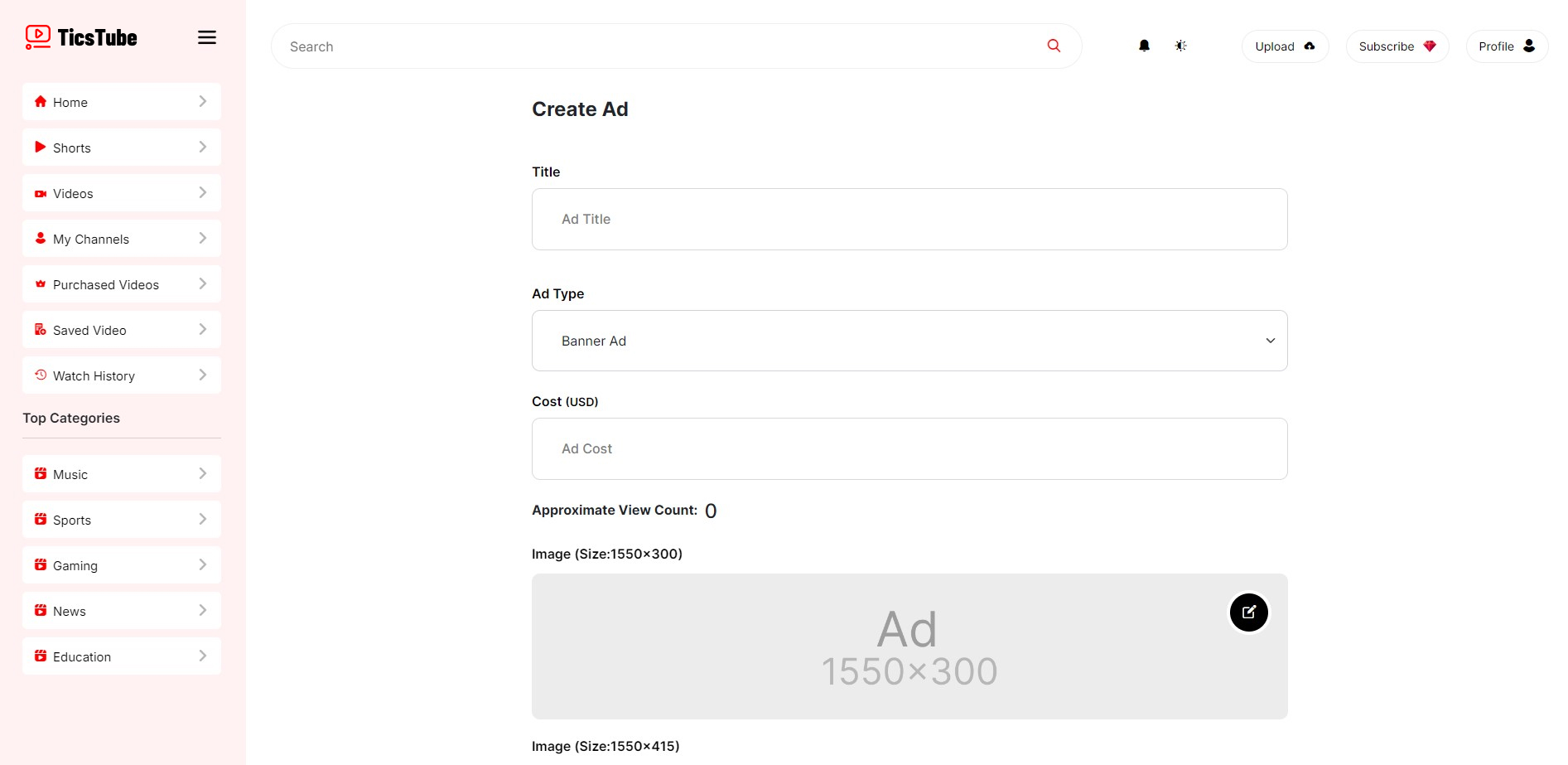
Goto Ad Manager Page to get the app upload page. From this page you can supervise your ads.
Know More About the Fields:
Title - This will help you identify your content.
Ad Type - You can post banner or video ad campain. Choose From Here.
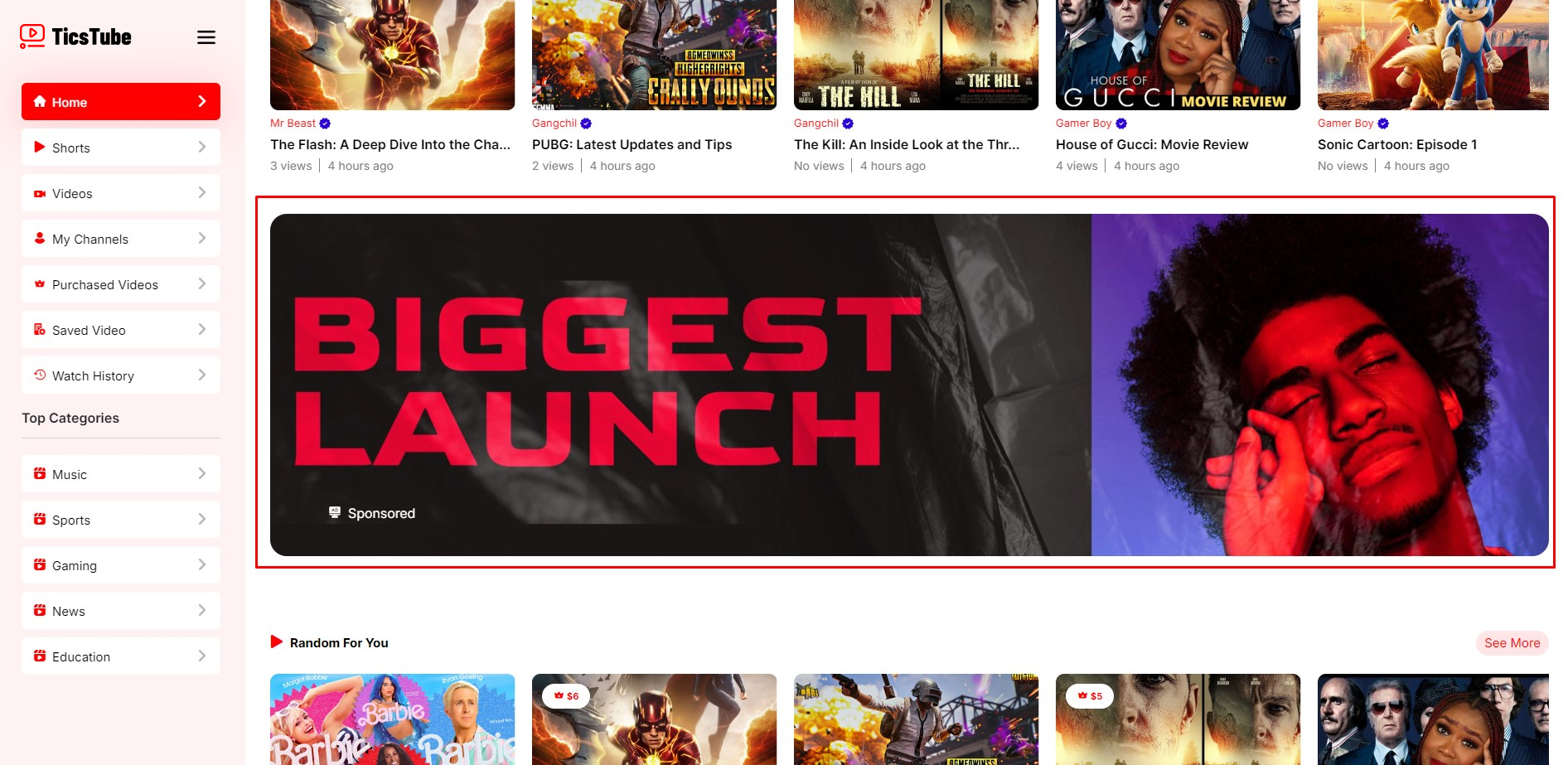
- Banner Ad: This Banner Ad will be shown on the page. You have to set 3 Banner Ads Size. Make 3 Banner Ads with the same content.
- Video Ad: This Video Ad will be shown on the video. This ad will pop on video while playing.
Cost - Based on your budget you can see how much time it will shown to the users. Underneath Approximate View Count will be shown.
URL - If anyone click on the ads then they will be redirected to this URL.
Payment Getway - Select your payment getway to post ad on the script.
Purchase Subscription
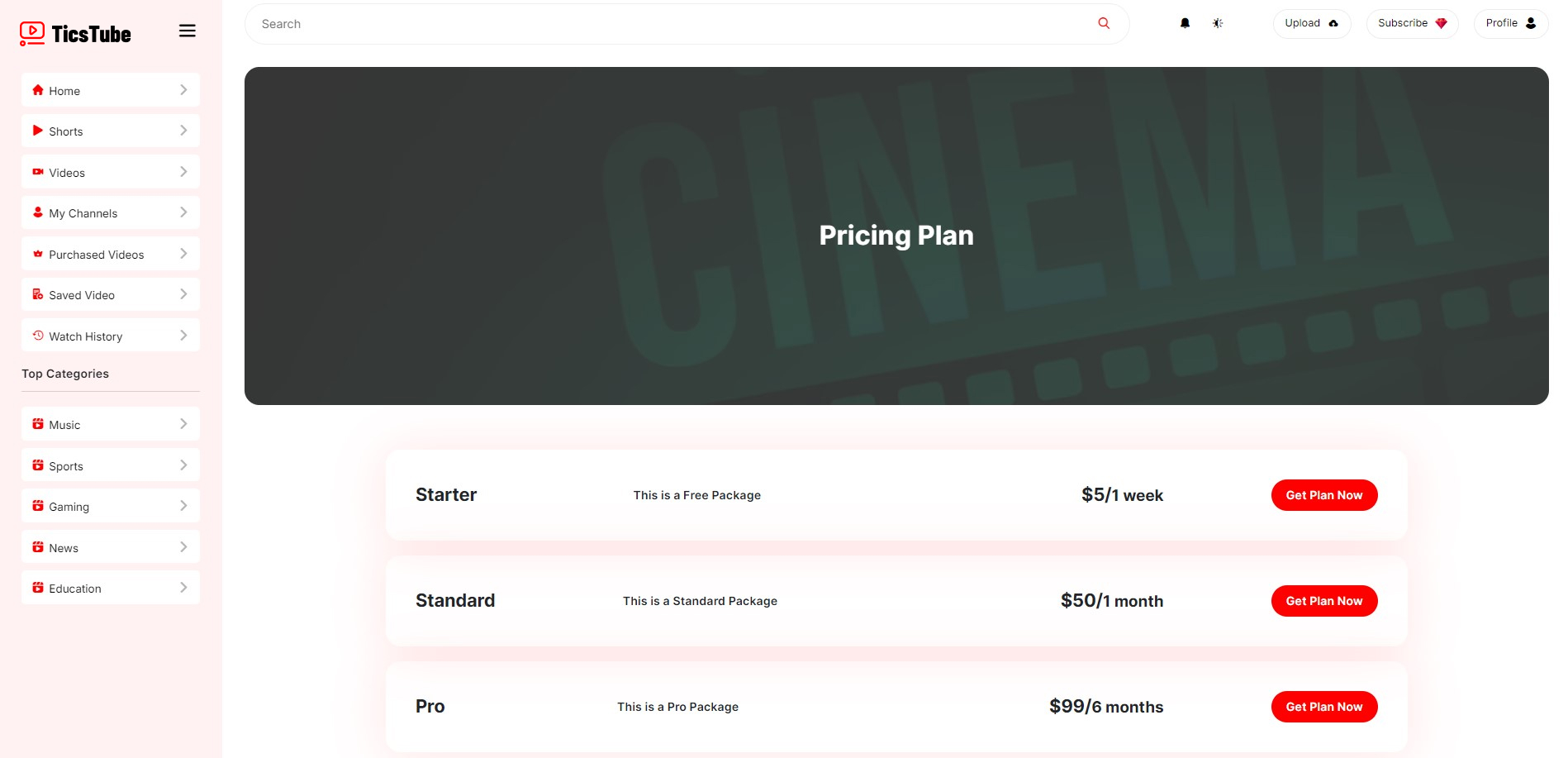
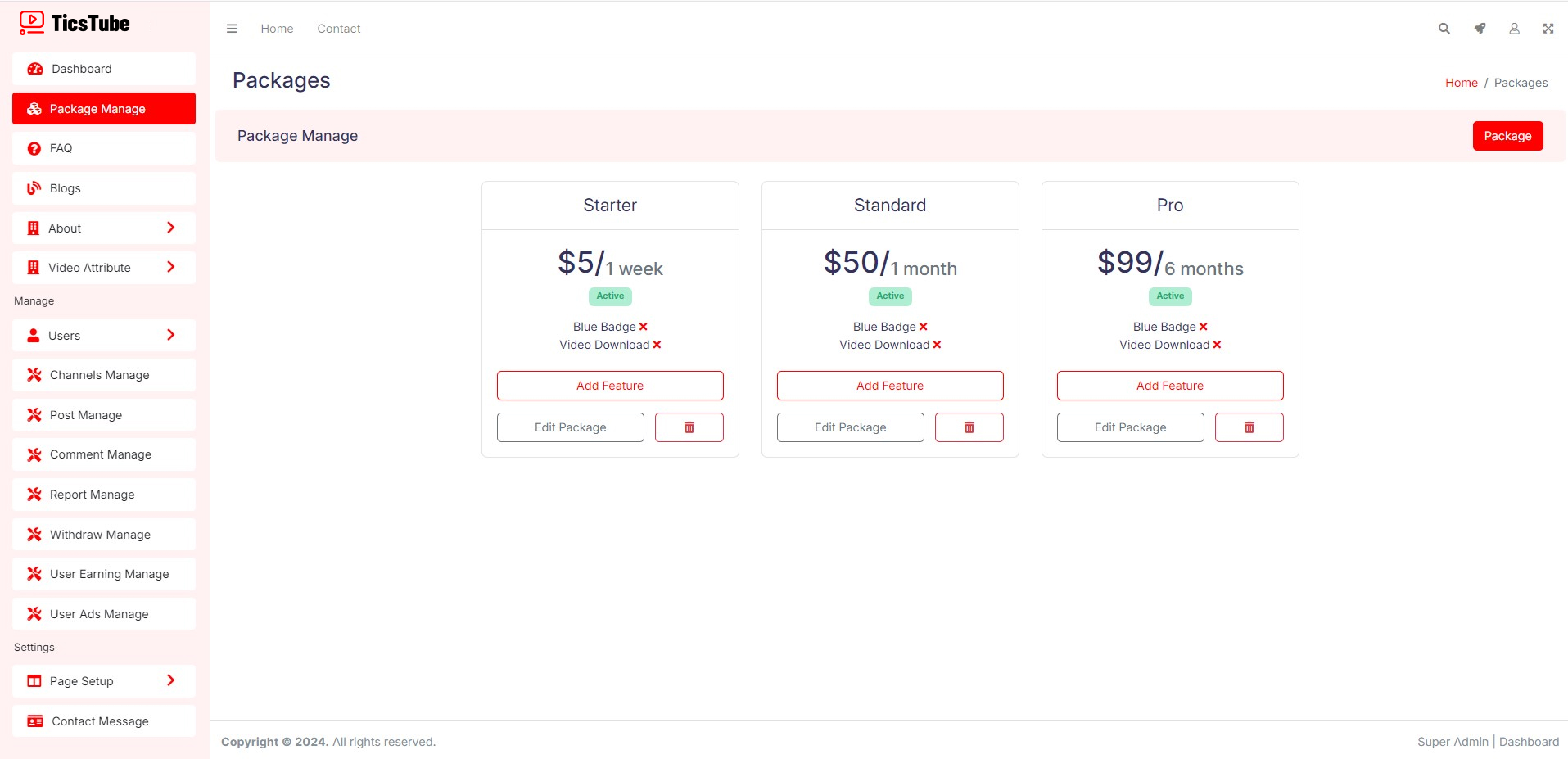
Purchecing Subscription will add some extra features. You can update and manage packages from superadmin dashboard.
To manage packages, go to Package Manage.
Follow Steps:
Superadmin Dashboard: Package Manage
Purchase Premium Video
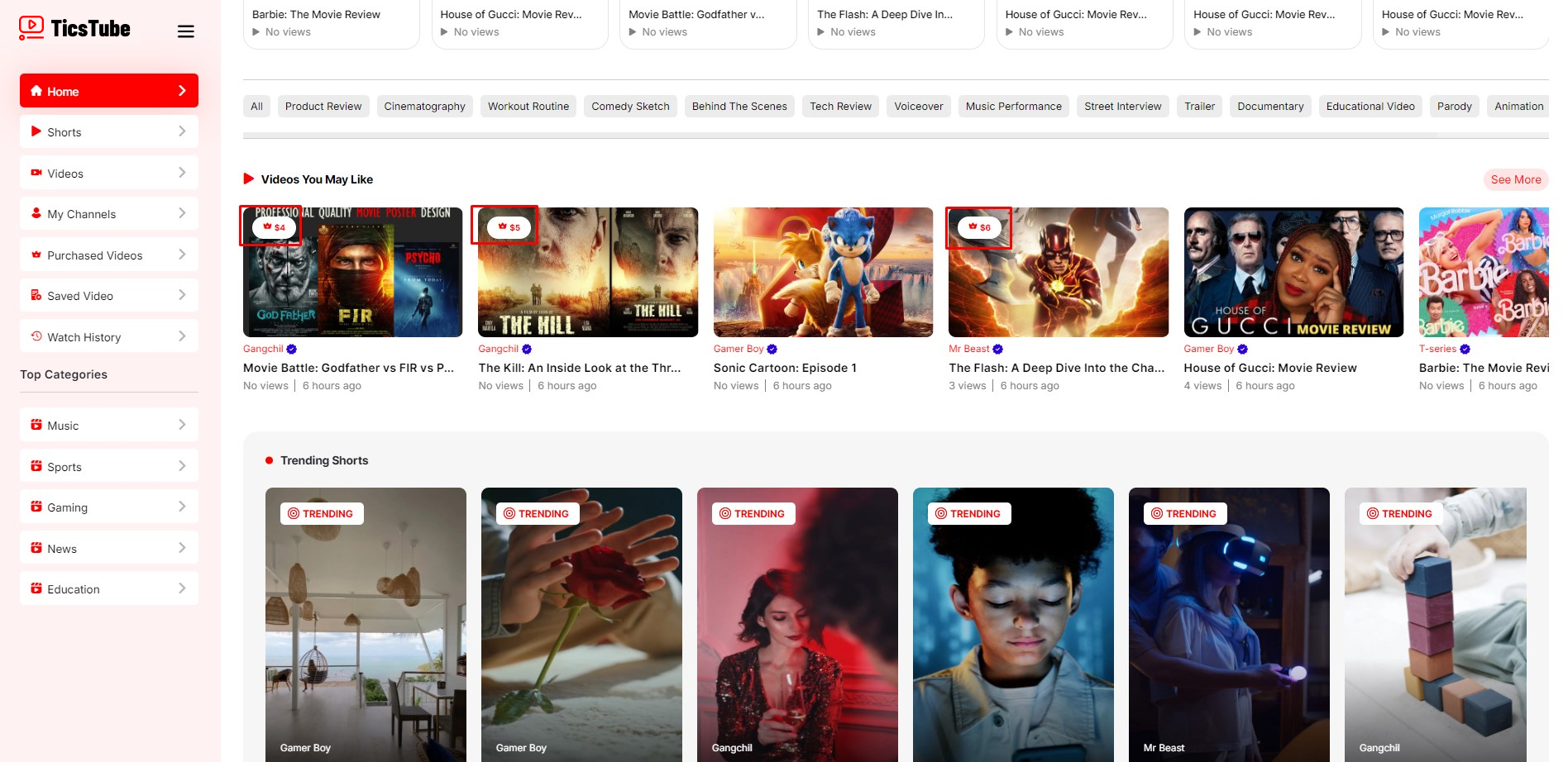
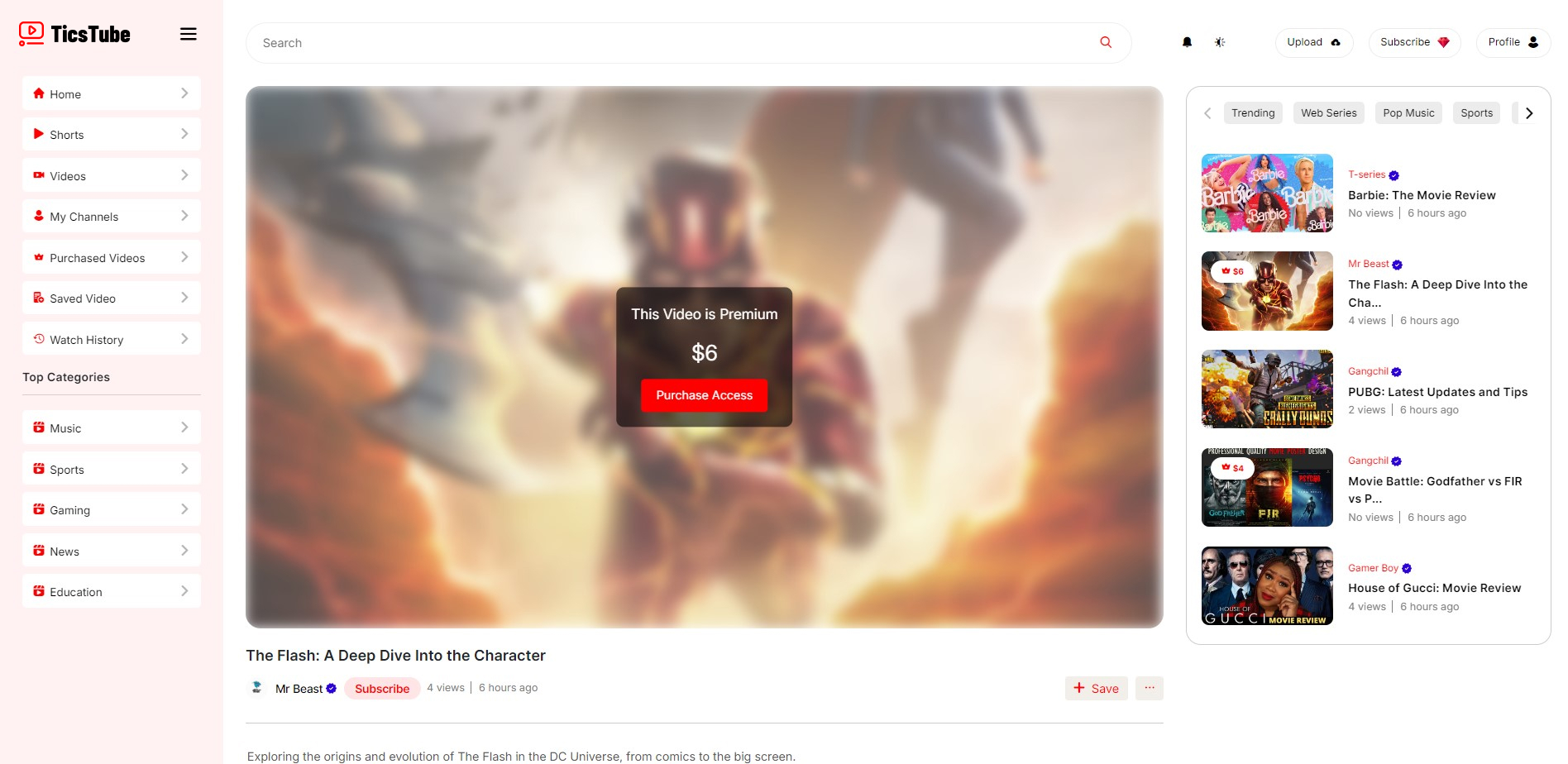
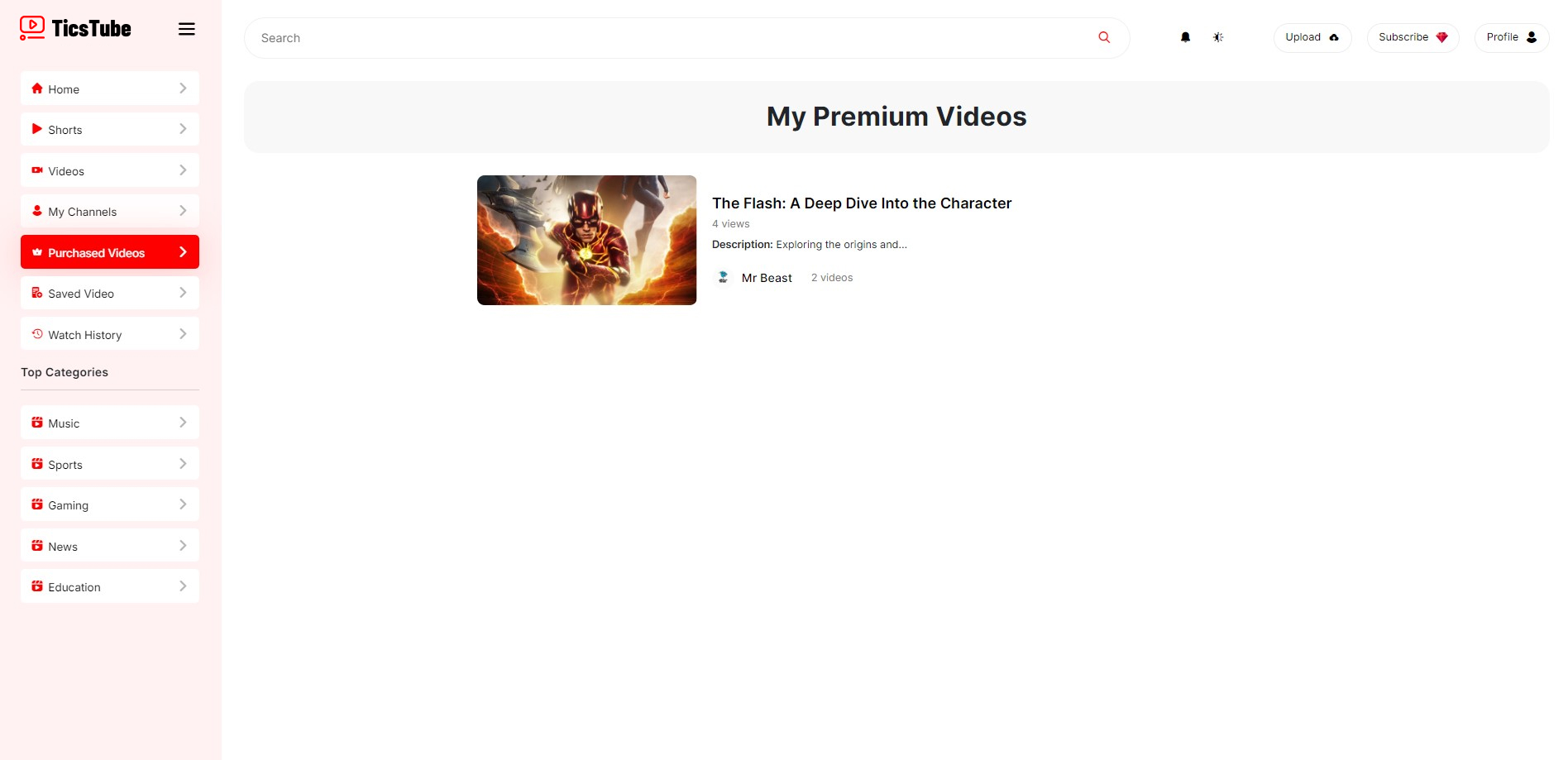
Premium Videos can be access by paying content price. Premium Videos will be taged with the price. User can see there all purchsed videos from there purchased videos page.
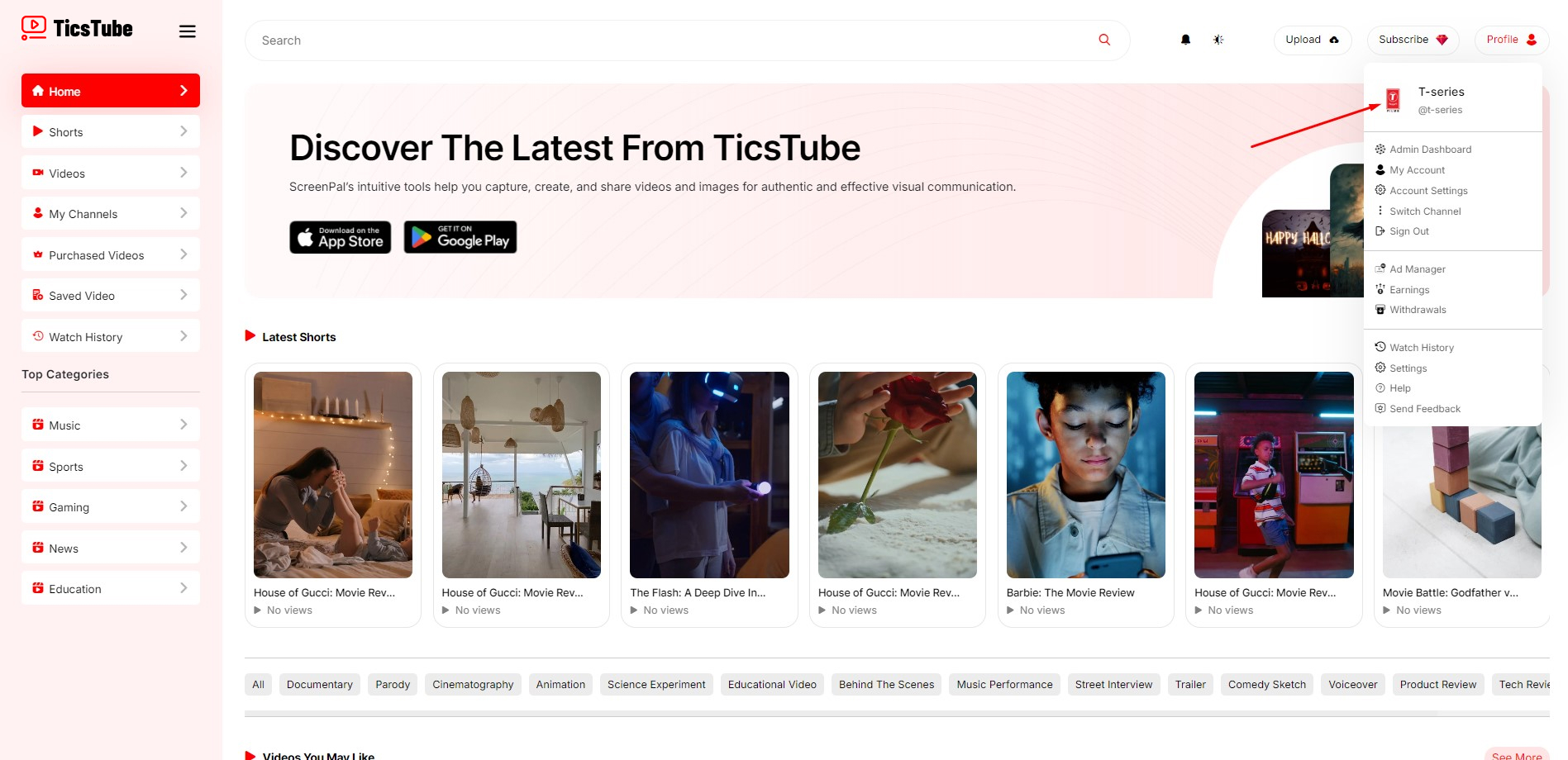
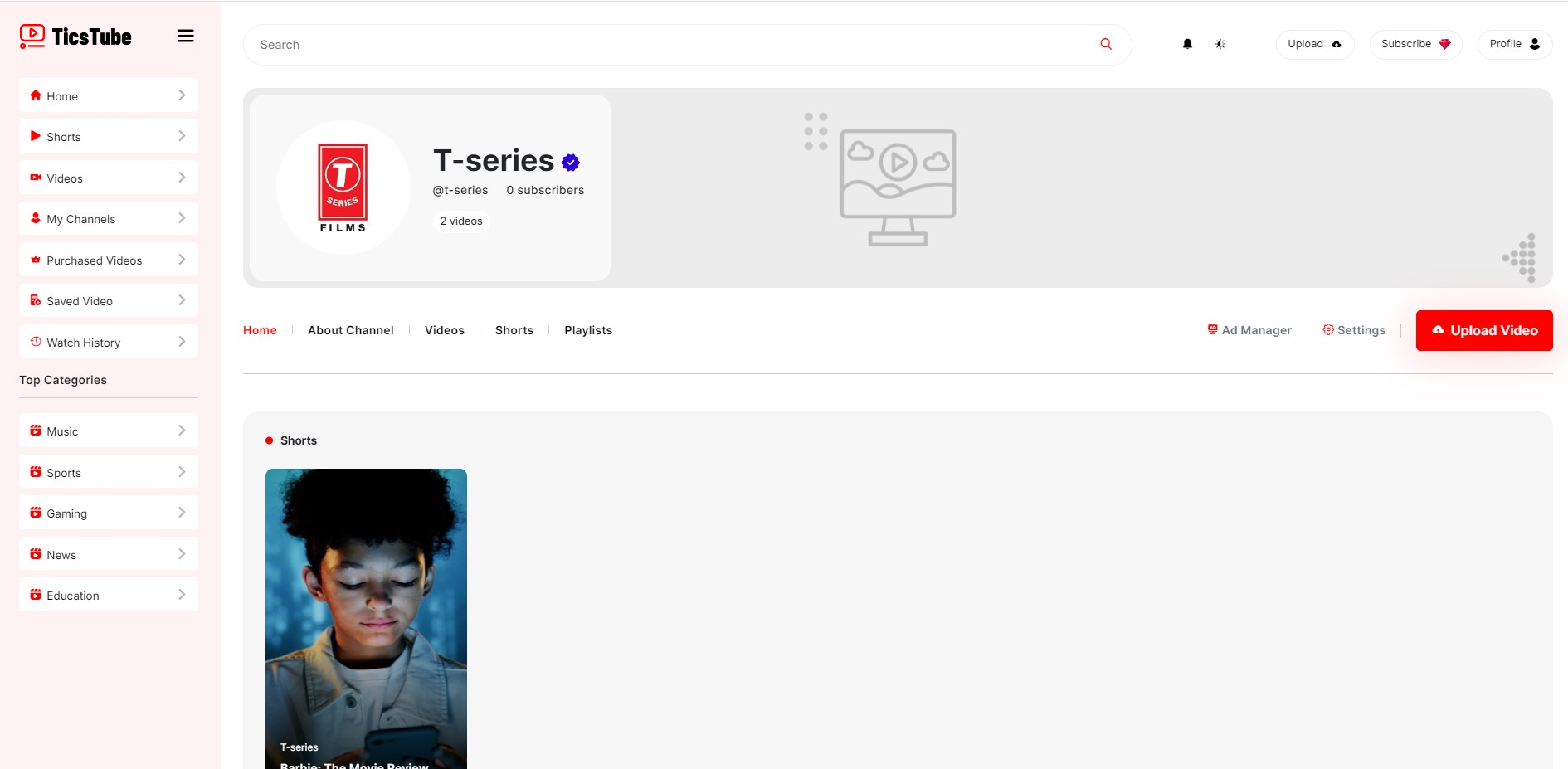
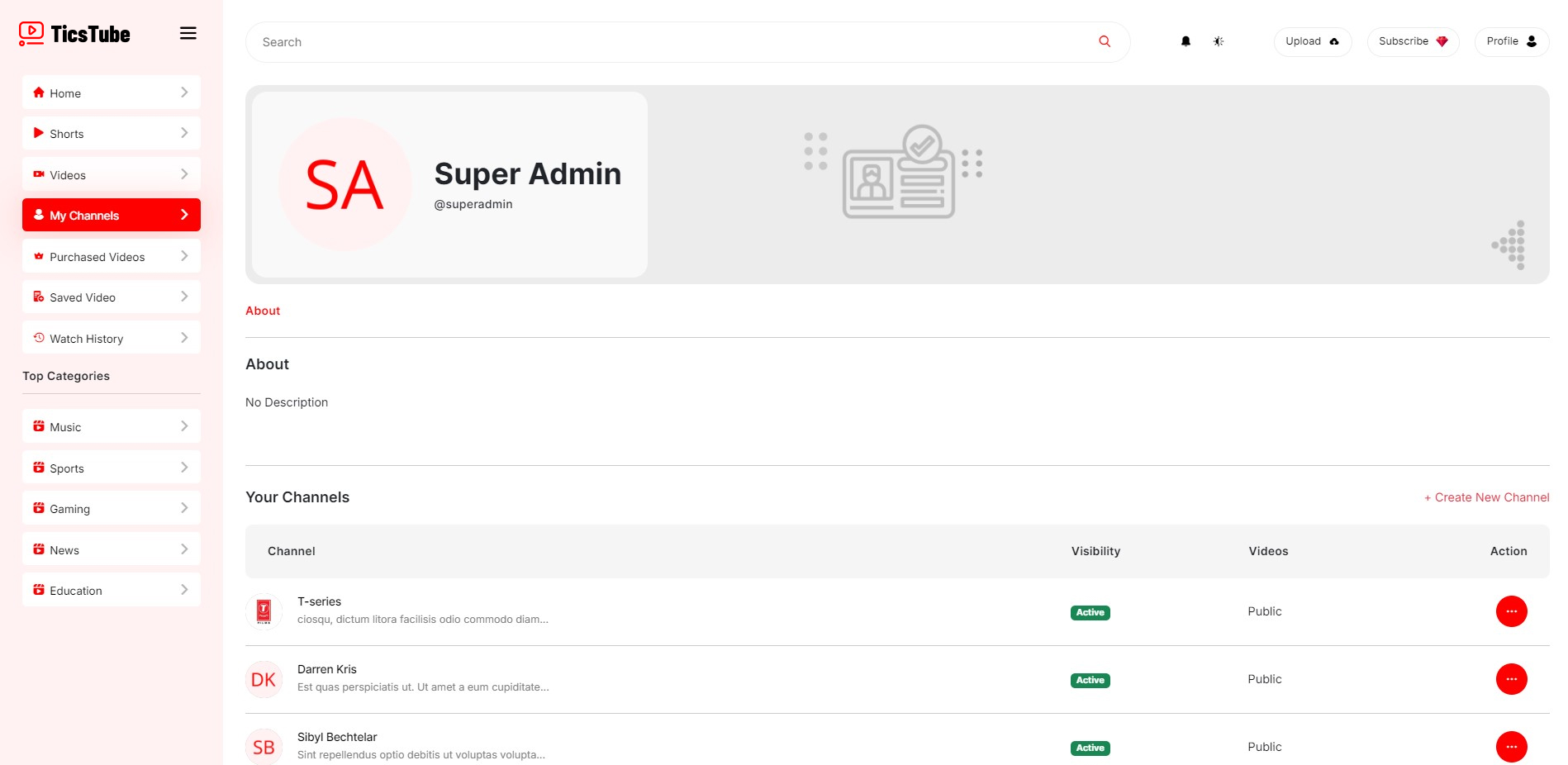
Manage Channel
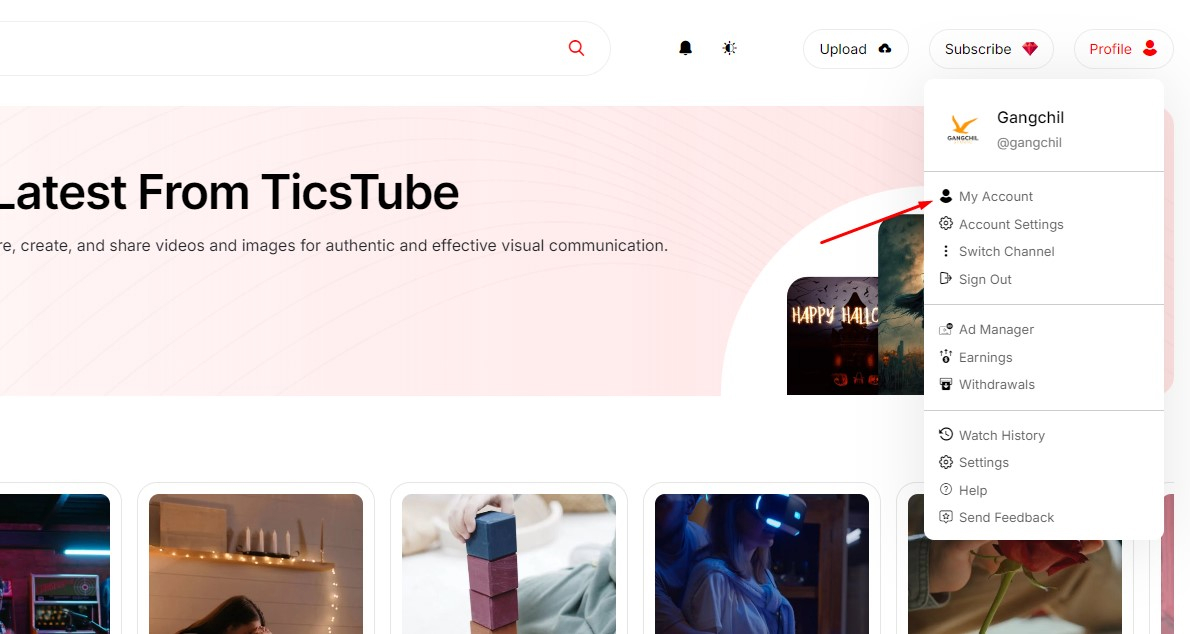
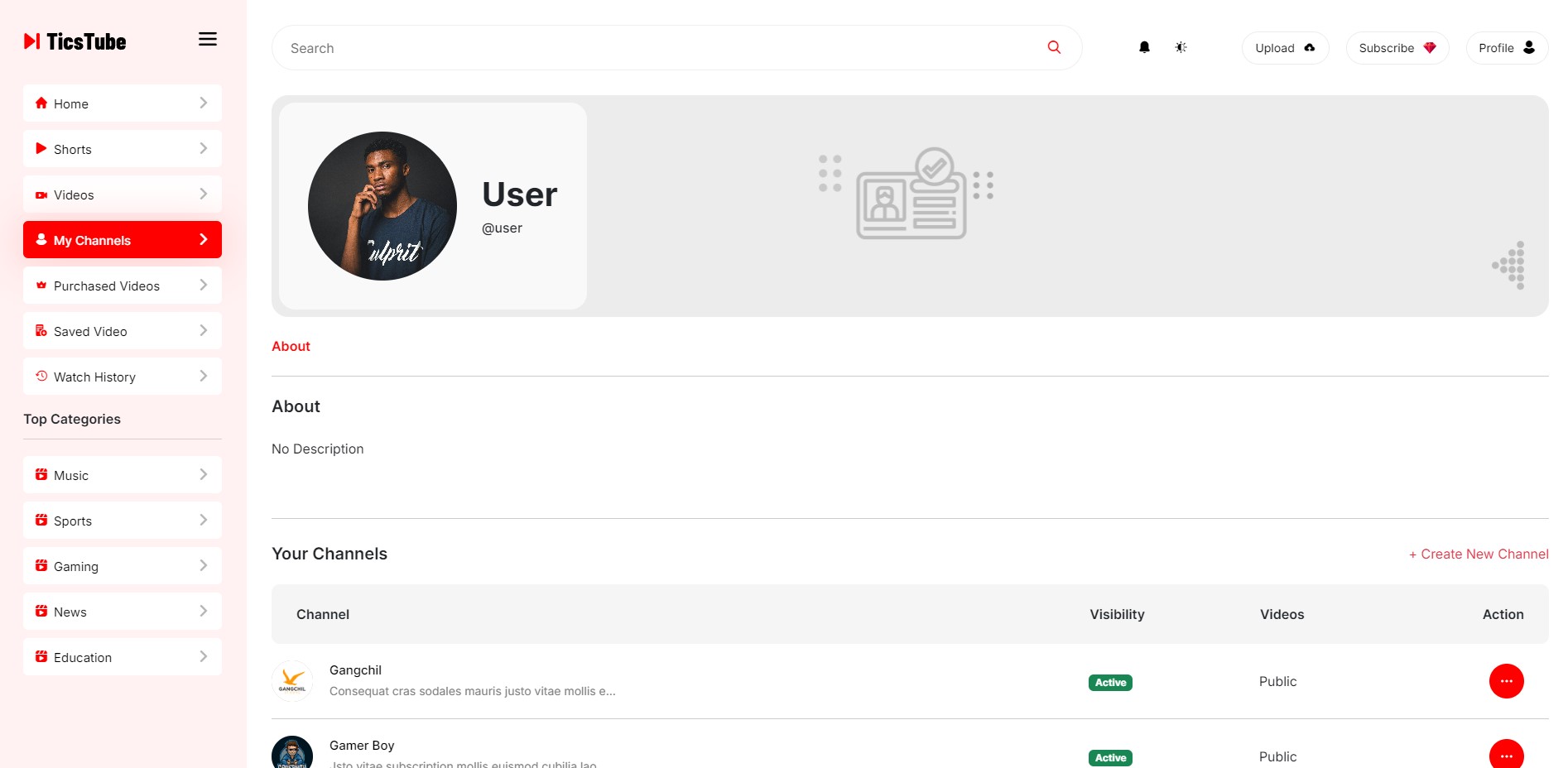
You can manage and access your active channel. Also you can create multiple channels. Also you can see all of your channels from your account about page.